Overview
Your user profile contains your personal information and notification preferences. Setting up your profile correctly ensures you receive the right notifications and your team members can easily identify you in the system.
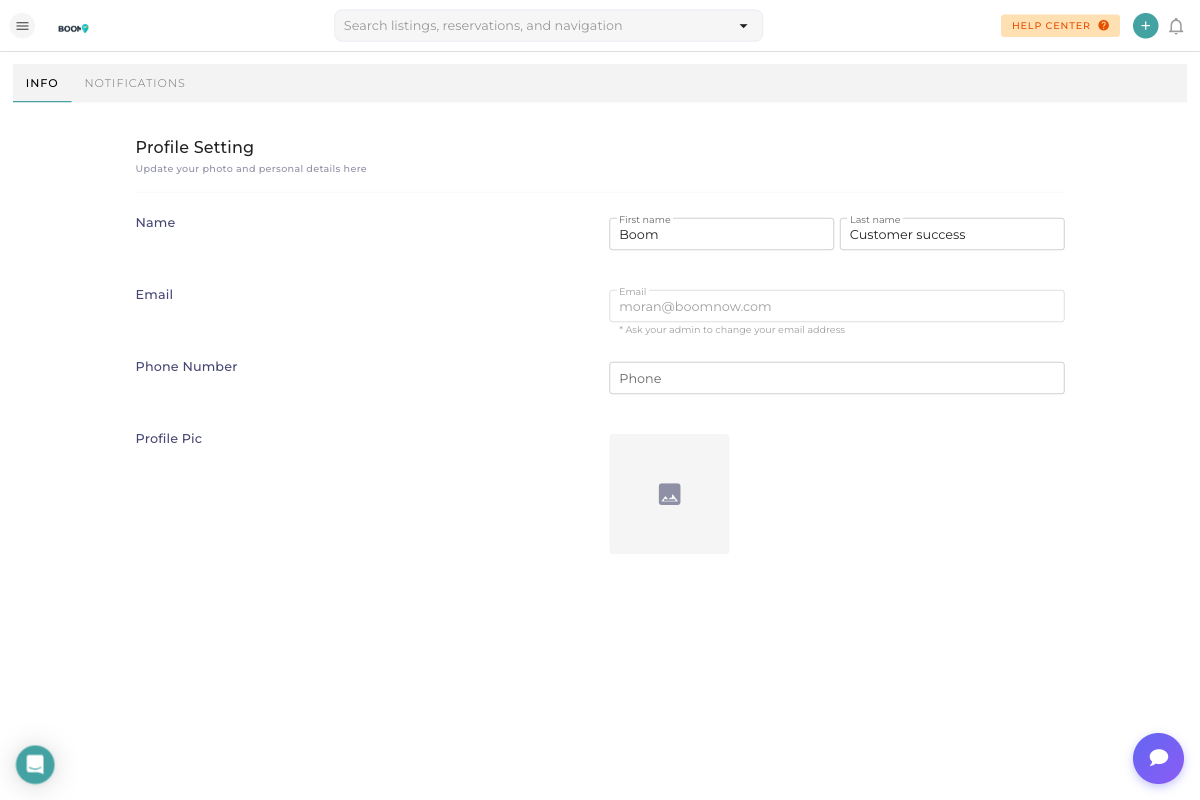
The profile page has two main sections: Info (personal details) and Notifications (alert preferences).
Step-by-Step Instructions
On the Info tab, you can update:
- First Name - Your first name as it will appear to team members
- Last Name - Your last name
- Email - Your login email (contact admin to change)
- Phone Number - Your contact phone number
- Profile Picture - Upload a photo to help team members identify you
Changes are saved automatically when you move to another field.
Click the Notifications tab to manage your alert preferences. You can toggle these notifications:
- New Guest Message - Get notified when guests send messages
- Customer Support Escalation - Alerts for escalated support issues
- Sales Escalation - Notifications for sales-related escalations
- All Damage Protection - Damage claim notifications
- Conversation Assignment - When conversations are assigned to you
- Email + Push Notifications - Enable both email and push alerts
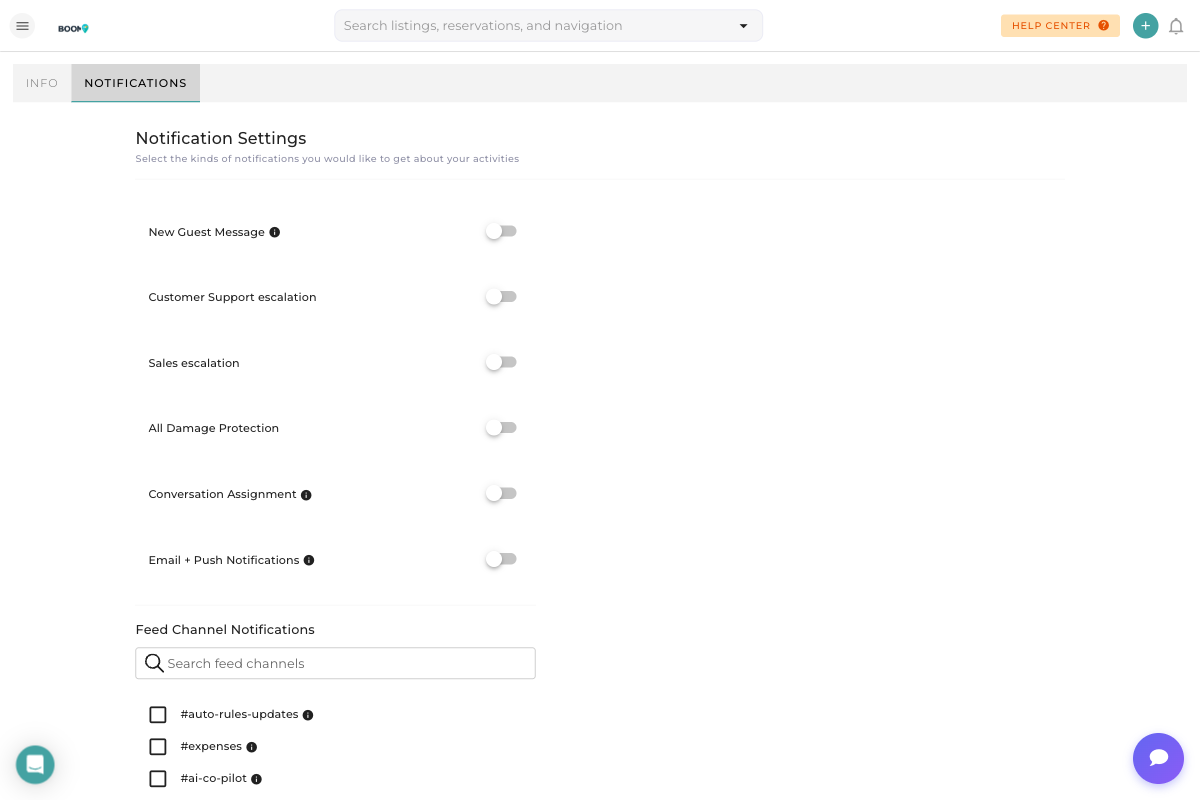
Below the main notification toggles, you'll find Feed Channel Notifications. These are team communication channels you can subscribe to:
- #auto-rules-updates - Automated rule activity
- #expenses - Expense tracking updates
- #ai-co-pilot - AI assistant activity
- #service-calls - Maintenance and service updates
- #reviews-feed - New guest reviews
- #cleaning - Cleaning task updates
- #new-reservations - New booking notifications
- #cancellations - Booking cancellation alerts
Check the box next to any channel you want to follow.
Field Reference
| Field | Description | Required |
|---|---|---|
| First Name | Your first name displayed to team members | Yes |
| Last Name | Your last name displayed to team members | Yes |
| Your login email address (read-only, contact admin to change) | Yes | |
| Phone | Your contact phone number for team communication | No |
| Profile Pic | Photo displayed in team interfaces and activity logs | No |
Pro Tips
Troubleshooting
Check these common causes:
- Make sure "Email + Push Notifications" is toggled ON
- Check your email spam/junk folder
- Verify your browser allows notifications from Boom PMS
- Ensure you're subscribed to the relevant feed channels
Profile pictures must be:
- In JPG, PNG, or GIF format
- Less than 5MB in size
- Square images work best (they'll be cropped to a circle)
Try resizing or compressing your image if it's too large.
Was this guide helpful?
Thanks for your feedback!