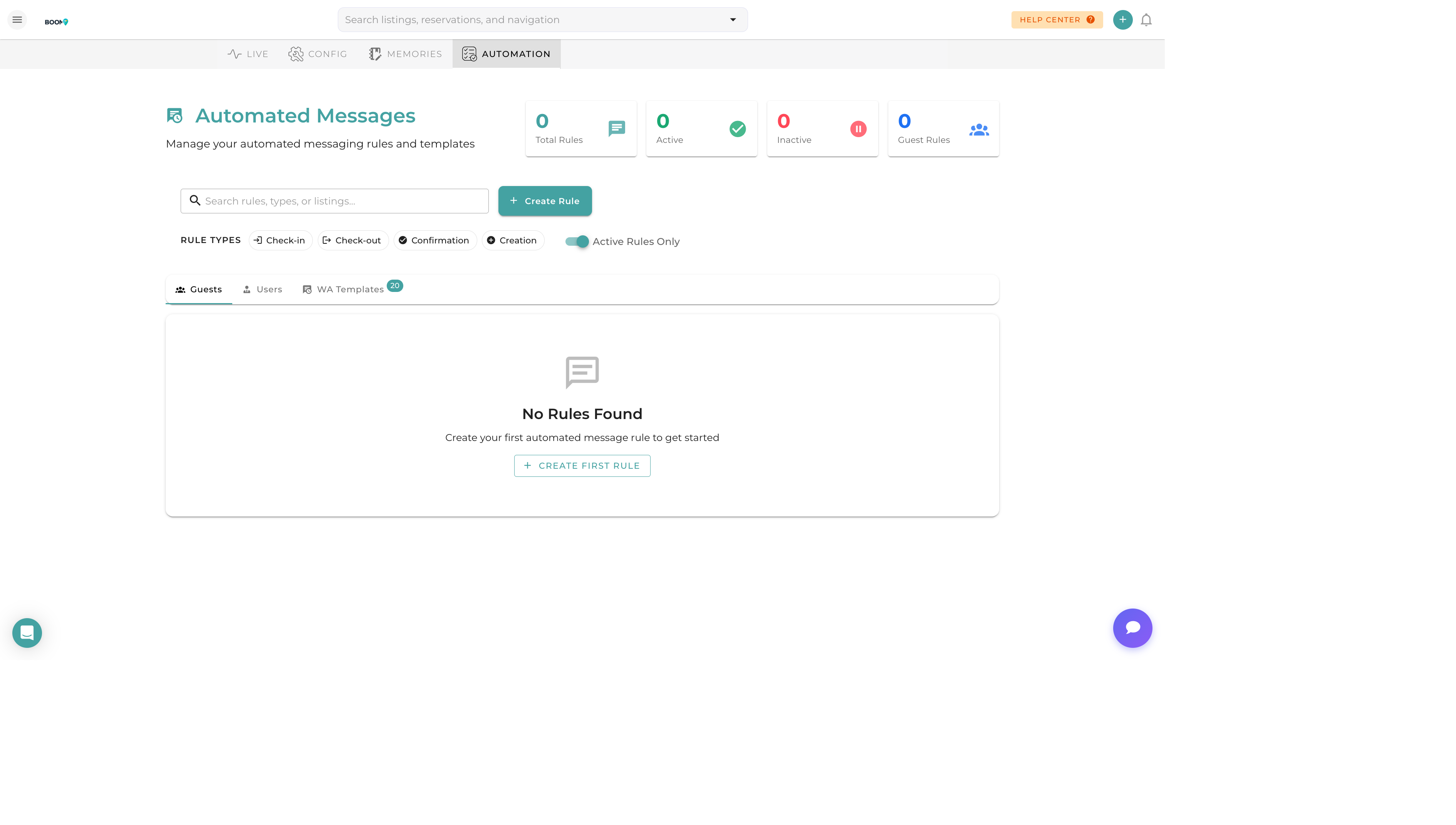
Overview
Automation Rules allow you to set up triggers that automatically execute actions when specific events occur. Automate guest communications, task creation, and other workflows to save time and ensure consistency.
Trigger Types
Reservation Events
- New Booking - When a reservation is created
- Booking Confirmed - When payment is received
- X Days Before Check-in - Before arrival
- On Check-in Day - Day of arrival
- During Stay - Mid-stay triggers
- On Check-out Day - Day of departure
- After Check-out - Post-stay actions
- Cancellation - When booking is cancelled
Guest Events
- Guest Message Received - When guest sends a message
- Review Posted - When a guest leaves a review
- Pre-check-in Complete - When guest finishes pre-check-in
Task Events
- Task Created - When a new task is added
- Task Completed - When a task is marked done
- Task Overdue - When deadline passes
Action Types
Send Message
Automatically send messages via email, SMS, or WhatsApp.
Create Task
Generate tasks for cleaning, maintenance, or other operations.
Send Notification
Alert team members via push notification or email.
Update Record
Automatically update reservation or guest information.
Webhook
Send data to external systems via HTTP webhook.
Creating an Automation Rule
Navigate to Automation
Go to Admin > Automation or Settings > Automation Rules.
Create New Rule
Click "Add Rule" to open the rule builder.
Select Trigger
Choose when the rule should fire (e.g., "2 days before check-in").
Set Conditions (Optional)
Add conditions to filter when the rule applies (e.g., specific properties, channels).
Define Action
Choose what happens when the rule fires (send message, create task, etc.).
Configure Message/Task
Set up the message template or task details with dynamic placeholders.
Activate Rule
Enable the rule to start automation.
Dynamic Placeholders
Use placeholders to personalize automated content:
{{guest_name}}- Guest's full name{{property_name}}- Property name{{check_in_date}}- Arrival date{{check_out_date}}- Departure date{{access_code}}- Door lock code{{wifi_password}}- WiFi credentials