Overview
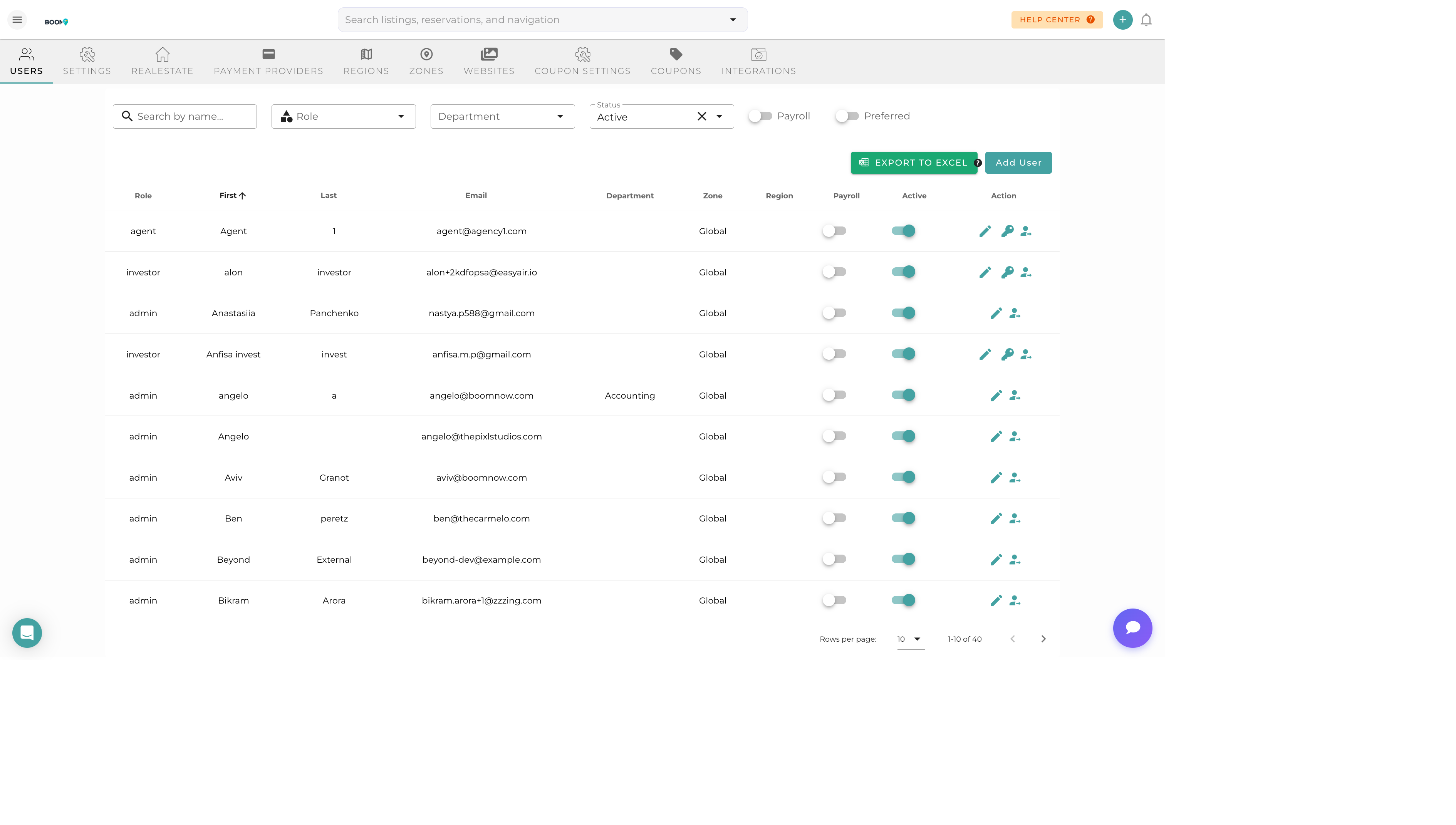
User Management allows administrators to control who has access to your Boom PMS account and what they can do. Add team members, assign roles, and manage permissions to maintain security and efficiency.
User Roles
Boom PMS offers 38 different roles across four categories to match your team structure:
- Commercial Roles - Admin, Property Manager, Coordinator, Sales Agent, etc.
- Operations Roles - Cleaning Manager, Cleaner, Contractor, Accountant, etc.
- External Roles - Investor/Owner, Tourist/Guest (with masked guest data)
- Specialty Roles - Pool, HVAC, Electrician, Plumber, and other contractors
Adding Users
Navigate to Users
Go to Admin > Users or Settings > Team Members.
Click Add User
Click the "Add User" or "Invite Team Member" button.
Enter User Details
- Name - User's full name
- Email - Used for login and notifications
- Phone - For mobile access and 2FA
- Role - Select appropriate role
Set Permissions
Optionally restrict access to specific properties or regions.
Send Invitation
Click "Invite" to send an email invitation with login instructions.
Managing Users
Edit User
Update user details, change roles, or modify permissions.
Deactivate User
Remove access without deleting the user record. Useful for temporary departures.
Delete User
Permanently remove a user. Their historical activity remains in audit logs.
Reset Password
Send a password reset link if a user is locked out.
Property Assignments
Control which properties a user can see and manage.