Overview
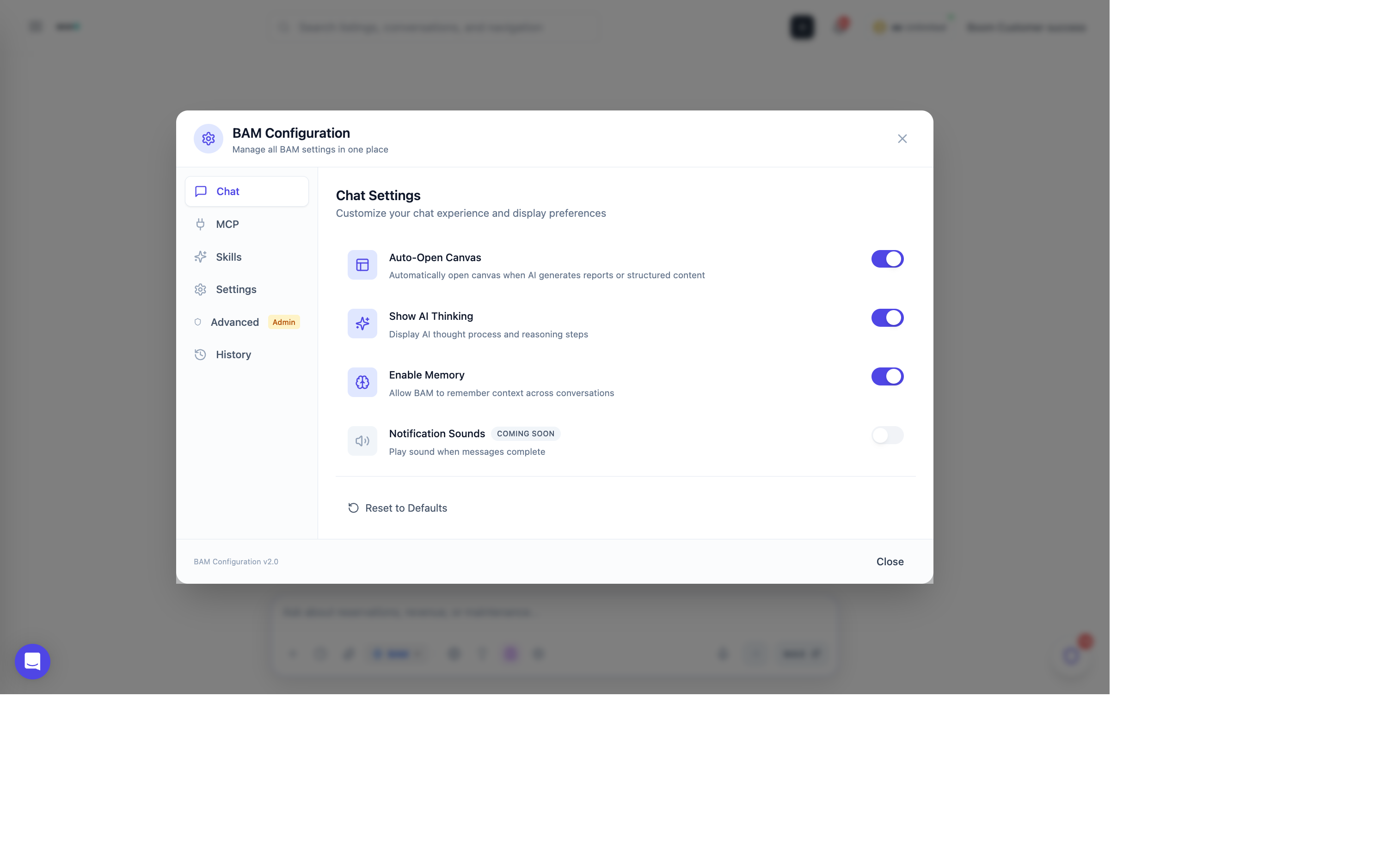
BAM Configuration allows you to customize how the AI assistant behaves. Access settings by clicking the gear icon in the chat input area.
Chat Settings
Auto-Open Canvas
When enabled, the canvas panel automatically opens when BAM generates tables, charts, or other visualizations.
Show AI Thinking
Display BAM's reasoning process as it works through your request. Helpful for understanding how decisions are made.
Memory
Enable memory to have BAM remember context across conversations. BAM will recall your preferences, property names, and past interactions.
Streaming Responses
Show responses as they're generated rather than waiting for completion. Provides faster perceived response time.
MCP Settings
Configure Model Context Protocol (MCP) servers to extend BAM's capabilities. See the MCP Integrations guide for details.
- View connected MCP servers
- Add new server connections
- Configure server settings
- Test connections
Skills Settings
Manage BAM's available skills and capabilities:
- Property Management - Reservation and property operations
- Guest Communication - Message drafting and response suggestions
- Financial Analysis - Revenue reporting and insights
- Task Management - Task creation and assignment
- Data Queries - Database queries and reporting
Enable or disable skills based on your needs.
General Settings
Response Language
Set the default language for BAM's responses. BAM supports multiple languages matching your Boom PMS localization.
Response Style
- Concise - Brief, to-the-point responses
- Detailed - Comprehensive explanations
- Balanced - Mix of brevity and detail (default)
Time Zone
Set the time zone for date/time references. Defaults to your account timezone.
Advanced Settings
Available to Super Admin users only.
Context Window
Configure the AI context window size:
- 200K tokens - Standard context (default)
- 1M tokens (Beta) - Extended context for complex analysis
Model Selection
BAM uses Claude Sonnet 4 for optimal performance. Advanced settings allow configuration of model parameters.
Rate Limits
Configure usage limits to control API costs:
- Daily message limits per user
- Playbook execution limits
- Token usage thresholds
Conversation History
Access past conversations:
- View previous chats
- Search conversation history
- Export conversations
- Clear history