Overview
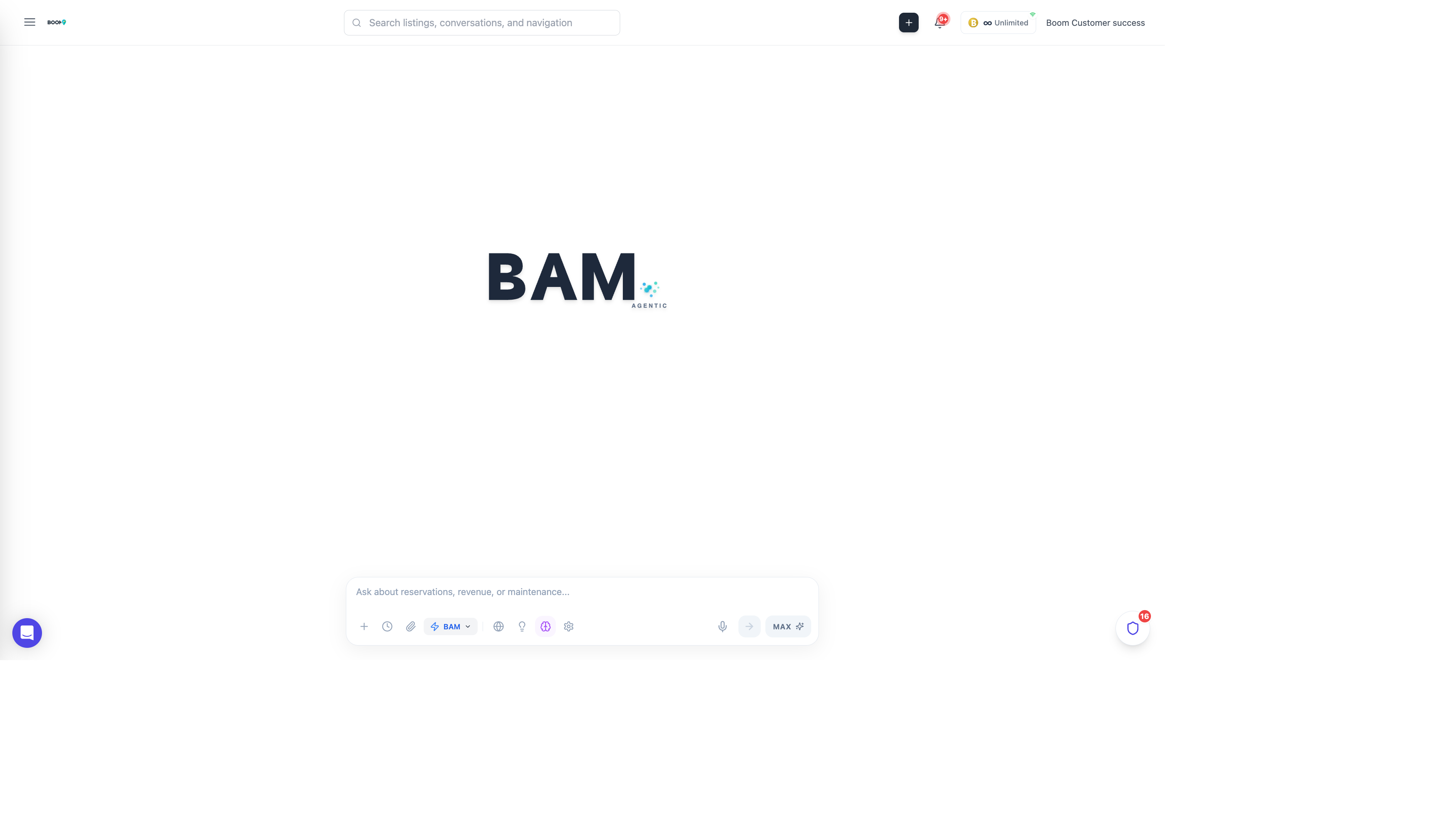
The BAM Chat interface allows you to have natural conversations with your AI assistant. Ask questions, request tasks, and get insights about your property management data.
Chat Interface
Message Input
Type your message in the input field at the bottom. Press Enter or click Send to submit.
Conversation History
Your conversation scrolls up as you chat. Previous messages and responses are preserved for context.
Canvas Panel
BAM can display visualizations, tables, and code in the canvas panel on the right side of the screen.
Settings Button
Click the gear icon in the input area to access BAM configuration options.
Asking Questions
You can ask BAM questions in natural language:
Data Queries
- "How many reservations do I have this month?"
- "What's the average nightly rate for Beach House?"
- "Show me all guests checking in tomorrow"
- "List properties with no bookings next week"
Operational Questions
- "What tasks are overdue?"
- "Who is cleaning Ocean View today?"
- "Are there any unread messages?"
- "What payments are pending?"
Performance Questions
- "What's my occupancy rate this quarter?"
- "Compare revenue month over month"
- "Which property performs best?"
- "Show me booking trends for this year"
Taking Actions
BAM can perform actions on your behalf:
Creating Records
- "Create a maintenance task for unit 5"
- "Add a cleaning task for tomorrow's checkouts"
- "Block dates Dec 24-26 for Beach House"
Drafting Content
- "Draft a welcome message for tonight's guest"
- "Help me respond to this review"
- "Write check-out instructions for the condo"
Approval Flow
When BAM performs an action, it will show you what it plans to do and ask for approval before executing. This ensures you stay in control.
Using the Canvas
The canvas displays rich content from BAM:
- Tables - Data displayed in formatted tables
- Charts - Visualizations of your data
- Code - Generated scripts or reports
- Documents - Drafted messages and content
You can auto-open the canvas or toggle it manually with the canvas button.
Conversation Tips
Follow-Up Questions
BAM remembers context, so you can ask follow-up questions:
- "Show me this week's check-ins" → "What about next week?"
- "List pending tasks" → "Assign them all to Maria"
Be Specific
Include relevant details for better results:
- Instead of "show reservations" try "show reservations for Beach House in January"
- Instead of "create a task" try "create a cleaning task for unit 3 tomorrow at 2pm"
Start Fresh
Click "New Chat" to start a new conversation when switching topics.