Overview
The QuickBooks integration automatically syncs your Boom PMS financial data with QuickBooks Online. This eliminates double-entry, ensures accurate bookkeeping, and simplifies tax preparation.
What Gets Synced
- Income - Reservation revenue, fees, and taxes
- Expenses - Property expenses and vendor payments
- Invoices - Guest and owner invoices
- Customers - Guest records synced as customers
- Vendors - Service providers and contractors
Connecting QuickBooks
Navigate to Integrations
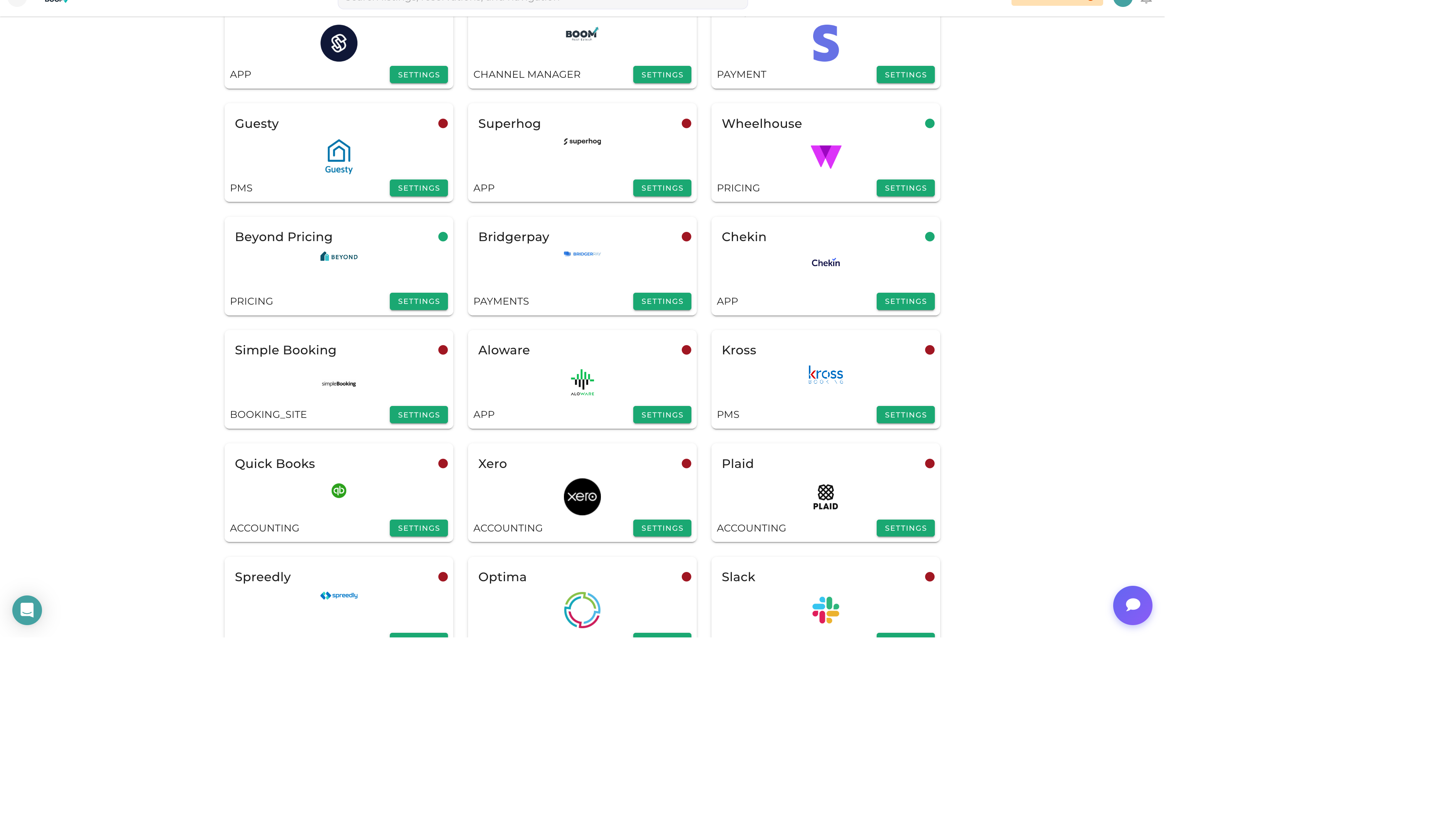
Go to Admin > Integrations and find QuickBooks in the Accounting section.
Click Connect
Click "Connect to QuickBooks" to start the OAuth authentication.
Authorize Access
Log into QuickBooks and authorize Boom PMS to access your company file.
Map Accounts
Match your Boom PMS ledger accounts to corresponding QuickBooks accounts.
Initial Sync
Run an initial sync to import existing customers and vendors from QuickBooks.
Account Mapping
Map your Boom PMS accounts to QuickBooks:
Income Accounts
- Rental Income → QuickBooks revenue account
- Cleaning Fees → Service income or separate account
- Other Fees → Miscellaneous income
Expense Accounts
- Cleaning Expense → Operating expense
- Maintenance → Repairs and maintenance
- Supplies → Property supplies
Liability Accounts
- Security Deposits → Liability account
- Owner Payables → Accounts payable
Sync Settings
- Auto-Sync - Enable automatic daily synchronization
- Sync Direction - Two-way or one-way sync
- Conflict Resolution - How to handle data conflicts
- Start Date - Only sync data after this date
Troubleshooting
Connection Expired
QuickBooks tokens expire after 100 days. Reconnect by clicking "Reconnect" in the integration settings.
Duplicate Entries
If duplicates appear, pause sync and review mapping. Merge duplicates in QuickBooks before resuming.
Missing Accounts
Create required accounts in QuickBooks first, then refresh the account list in Boom PMS mapping.