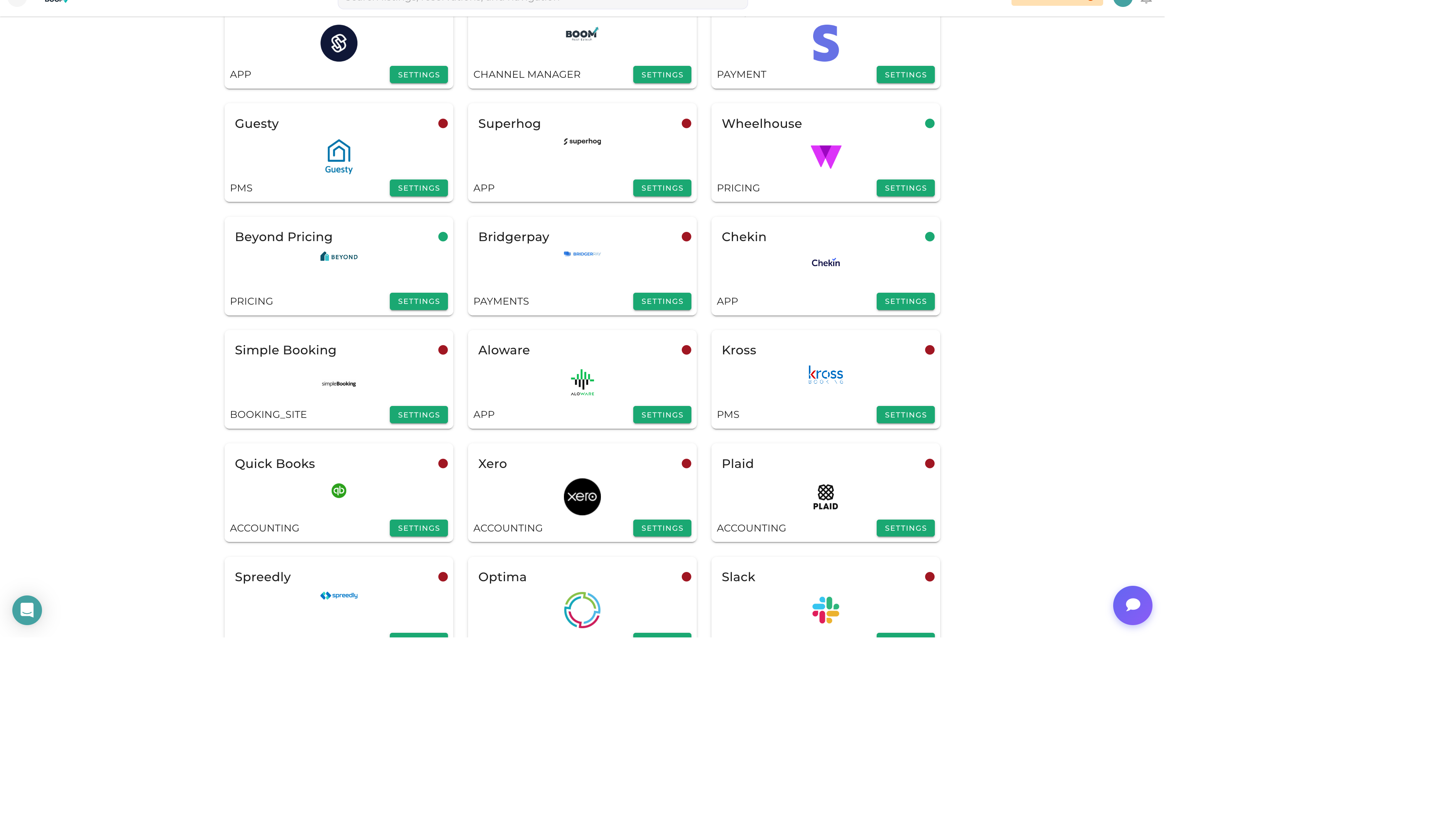
Overview
Smart lock integration enables automated guest access. Boom PMS generates unique access codes for each reservation, sends them to guests at check-in time, and automatically expires them at checkout.
Supported Lock Brands
- August - WiFi-enabled smart locks
- Yale - Yale Assure and Real Living series
- Schlage - Encode and Sense series
- RemoteLock - Commercial-grade access control
- Igloohome - Offline-capable smart locks
- Kwikset - Halo and SmartCode series
Connecting Smart Locks
Navigate to Integrations
Go to Admin > Integrations and find Smart Locks in the Devices section.
Select Lock Brand
Choose your lock manufacturer to start the connection process.
Authenticate
Log into your lock manufacturer's account to authorize Boom PMS access.
Discover Devices
Boom PMS will discover all locks on your account. Assign each lock to a property.
Configure Code Settings
Set preferences for code length, format, and delivery timing.
Access Code Management
Automatic Code Generation
Boom PMS automatically:
- Creates unique codes for each reservation
- Activates codes at check-in time
- Sends codes to guests via email/SMS
- Expires codes at checkout time
Manual Codes
Create manual codes for:
- Staff Access - Permanent codes for cleaners and maintenance
- Owner Access - Long-term codes for property owners
- Temporary Access - Short-term codes for contractors
Code Delivery
Configure when and how codes are sent:
- Timing - Send at check-in, hours before, or on demand
- Method - Email, SMS, or both
- Template - Customize the message with property-specific instructions
Property Lock Setup
Open Property Settings
Go to the property's settings page and find the Smart Lock section.
Assign Lock
Select the lock device from your connected locks list.
Set Code Preferences
Choose code format, length, and when codes should be generated.
Configure Access Instructions
Add step-by-step entry instructions for guests (where to find lock, how to enter code).