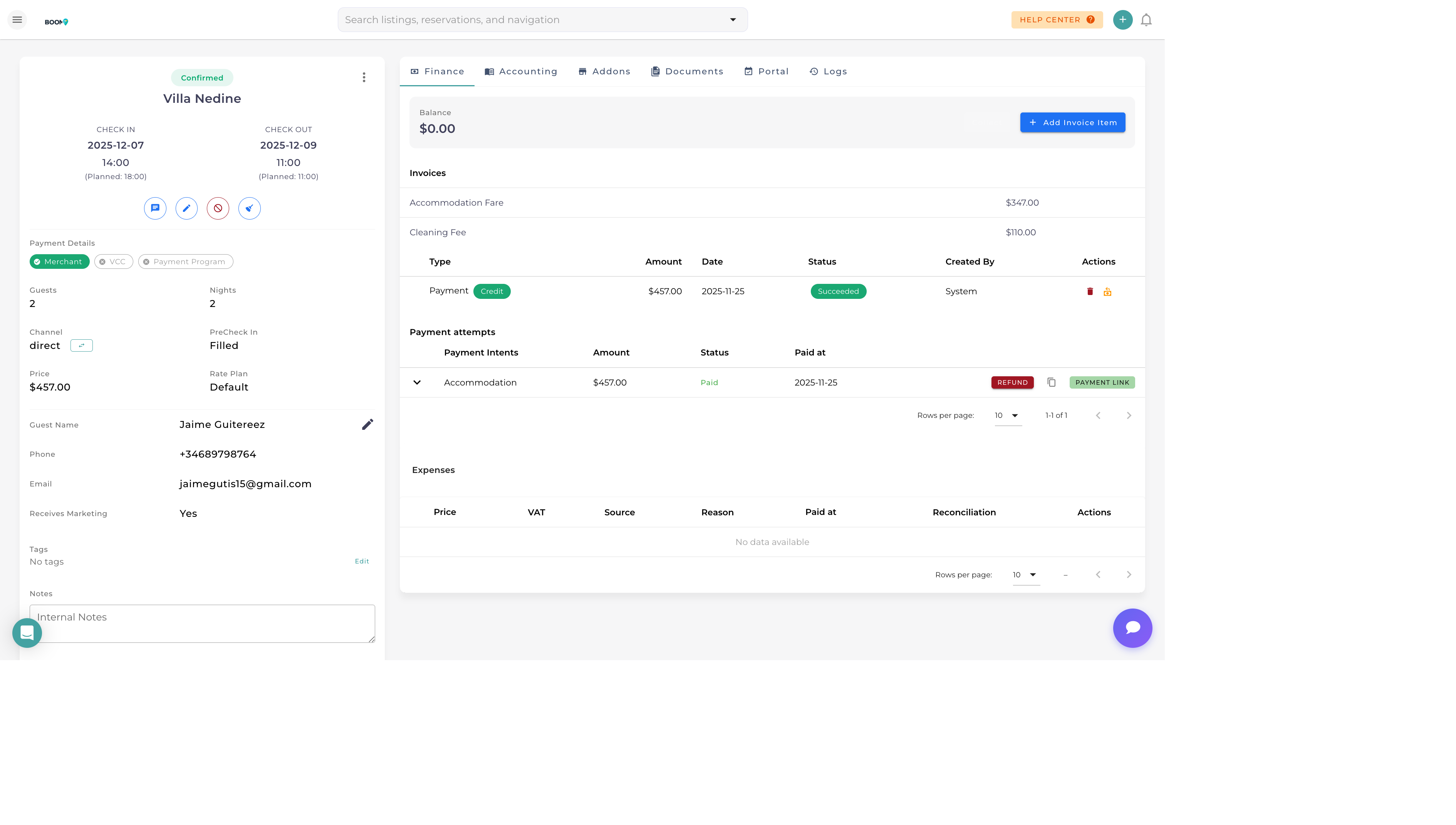
Reservation Invoices in Boom PMS
Overview
Boom PMS generates professional invoices and receipts for your reservations. Send them directly to guests via email, download as PDF, or print for your records. All documents include your branding and complete financial details.
Invoice vs Receipt
| Document | Purpose | When to Use |
|---|---|---|
| Invoice | Request for payment showing amount due | Before full payment received |
| Receipt | Confirmation of payment received | After payment processed |
| Quote | Estimated pricing before booking | For inquiries or proposals |
Generating an Invoice
- Open the Reservation
Navigate to the reservation details
- Go to Financials Tab
View the financial summary
- Click Generate Invoice
Create a new invoice for this booking
- Review Details
Verify line items, taxes, and totals
- Send or Download
Email to guest or save as PDF
Invoice Contents
Standard invoices include:
- Header - Your company name, logo, and contact info
- Invoice Number - Unique sequential identifier
- Guest Details - Name and contact information
- Reservation Details - Property, dates, guest count
- Line Items - Accommodation, fees, extras
- Tax Breakdown - All applicable taxes listed
- Total Due - Amount to be paid
- Payment Instructions - How to pay
- Terms - Payment due date, policies
Sending Documents
Email Delivery
- PDF attached to professional email template
- Include payment link for easy collection
- Track when guest opens email
Download Options
- PDF - Standard portable document format
- Print - Send directly to printer
Customization
Configure invoice appearance in Settings:
- Logo - Add your company logo
- Colors - Match your brand colors
- Footer - Custom message or terms
- Tax Display - Inclusive or exclusive pricing
- Language - Match guest's preferred language
Receipt Generation
Receipts are automatically available after payment:
- View Payment
Find the payment in transaction history
- Click Receipt
Generate receipt for that payment
- Send to Guest
Email or download the receipt
Auto-Send Receipts
Enable automatic receipt sending in your settings to email receipts immediately after successful payments.
Was this guide helpful?
Thanks for your feedback!