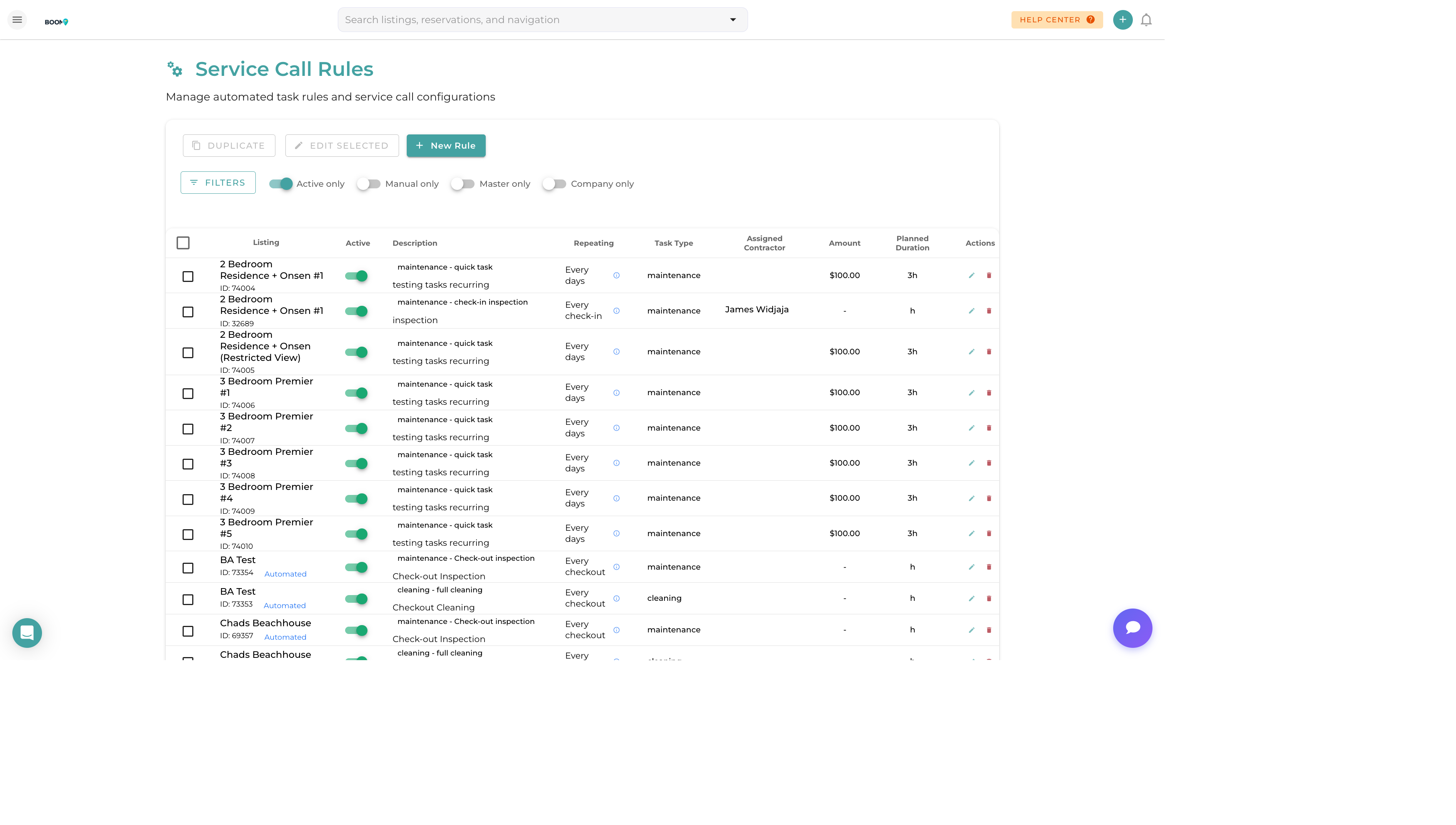
Automated Task Rules: Configure triggers for automatic task creation
Overview
Automated task rules eliminate manual task creation by automatically generating tasks based on triggers like check-ins, check-outs, or scheduled intervals. This ensures consistent operations and frees your team from repetitive work.
With automated rules, you can:
- Auto-create cleaning tasks after each checkout
- Schedule pre-arrival inspections before check-ins
- Set up recurring maintenance tasks (e.g., HVAC filter changes)
- Assign tasks to specific team members or contractors automatically
- Configure task timing relative to reservation events
Creating an Automated Task Rule
Step 1: Access Automated Tasks
Navigate to Operations > Automated Tasks in the main menu. You'll see a list of existing rules and a button to create new ones.
Step 2: Create New Rule
Click the "Create Rule" button to open the rule configuration form. You'll need to specify:
- Rule Name - A descriptive name (e.g., "Post-Checkout Cleaning")
- Task Type - Select from cleaning, maintenance, inspection, etc.
- Properties - Choose which properties this rule applies to
Step 3: Configure Trigger
Select when the task should be created:
- On Check-out - Task created when guests check out
- Before Check-in - Task created X hours before guest arrival
- After Check-in - Task created after guest arrives
- On Reservation Created - Task created when booking is made
- Recurring Schedule - Task created on a fixed schedule (daily, weekly, monthly)
Step 4: Set Assignment
Configure how tasks are assigned:
- Specific Person - Always assign to a designated team member
- By Zone - Assign based on property zone assignments
- Round Robin - Distribute evenly among available team members
- Unassigned - Leave for manual assignment
Step 5: Save and Activate
Review your rule settings and click Save. Toggle the rule to "Active" to start automatic task creation.
Common Rule Types
| Rule Type | Trigger | Use Case |
|---|---|---|
| Turnover Clean | On Check-out | Standard cleaning between guests |
| Pre-Arrival Check | 4 hours before Check-in | Final inspection before guest arrival |
| Deep Clean | Monthly recurring | Thorough cleaning on a schedule |
| HVAC Service | Quarterly recurring | Filter changes and system checks |
| Welcome Setup | Day of Check-in | Set up welcome amenities for VIP guests |
Pro Tips
Use Templates
Create task templates with detailed checklists. When rules create tasks, they can include all checklist items automatically.
Test Before Going Live
Create a rule for a single test property first. Verify tasks are created correctly before applying to all properties.
Avoid Duplicate Rules
Review existing rules before creating new ones. Duplicate rules can create multiple tasks for the same event.
Was this guide helpful?
Thanks for your feedback!