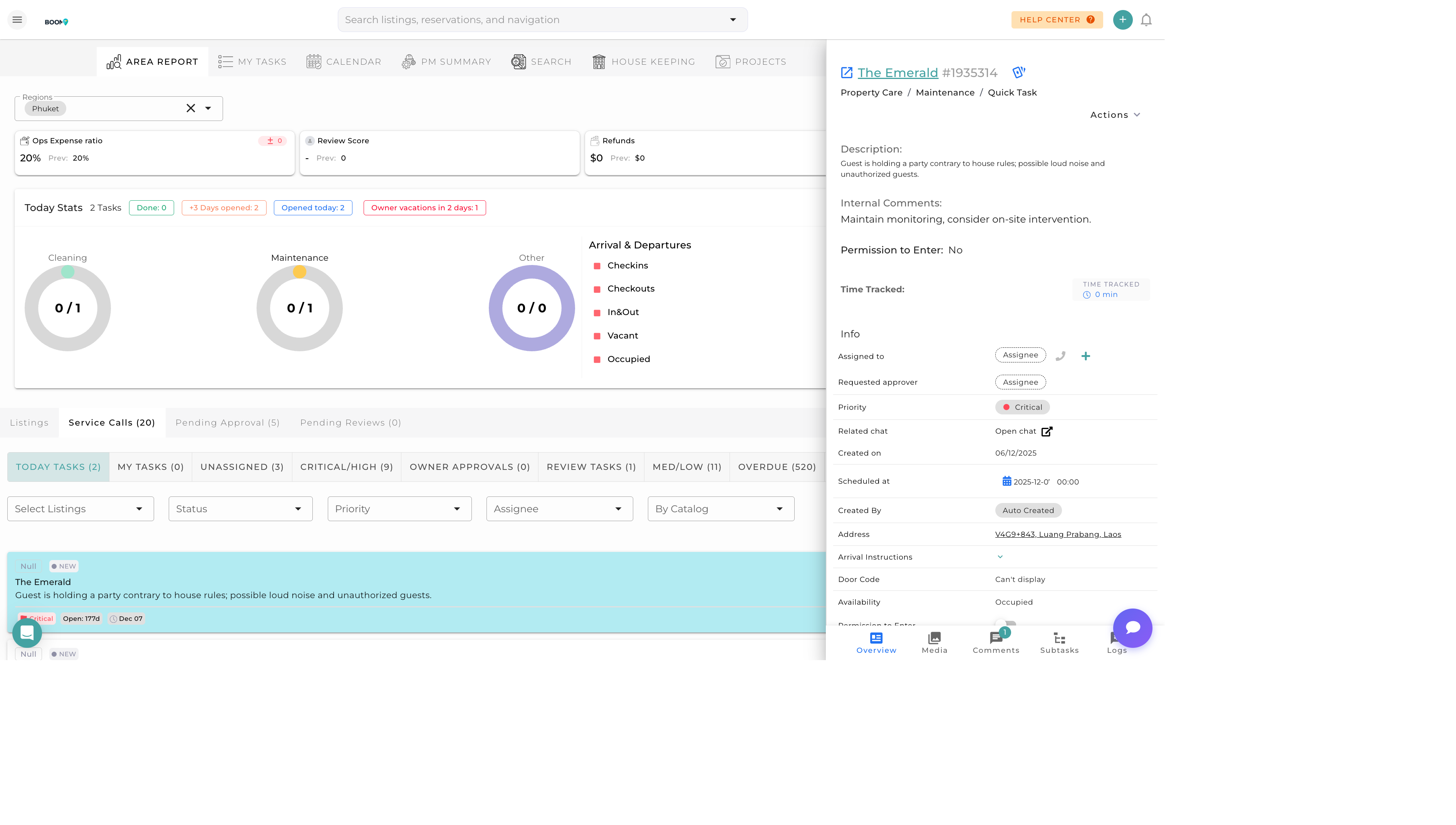
Task Details: Complete view of task information, assignment, and progress
Overview
The Task Details panel provides comprehensive information about each task and allows you to manage all aspects of task execution. From here you can view assignments, track progress, review photos, and communicate with team members.
Task Details Sections
Task Header
The header shows essential task information at a glance:
- Task Type - Icon and label (cleaning, maintenance, etc.)
- Status Badge - Current status (pending, in progress, completed)
- Property Name - Which property the task is for
- Scheduled Date/Time - When the task should be completed
Assignment Section
View and manage who is responsible for the task:
- Assigned To - Team member or contractor name
- Change Assignment - Reassign to another person
- Contact Info - Quick access to call or message assignee
Checklist
If the task has a checklist, team members can check off items as completed. Managers can:
- See progress through the checklist
- Add additional items if needed
- Mark items as required or optional
Photos Section
View before and after photos uploaded by the team:
- Before Photos - Documentation of initial condition
- After Photos - Proof of completed work
- Issue Photos - Documentation of problems found
Notes & Communication
View task notes and communicate with the team:
- Task Notes - Special instructions or requirements
- Comments - Conversation thread between team members
- Activity Log - History of all task changes
Available Actions
| Action | Description | Who Can Do It |
|---|---|---|
| Start Task | Mark task as in progress | Assignee, Manager |
| Complete Task | Mark task as finished | Assignee, Manager |
| Reassign | Change task assignee | Manager, Admin |
| Reschedule | Change task date/time | Manager, Admin |
| Add Photos | Upload task documentation | Assignee |
| Cancel Task | Cancel task (with reason) | Manager, Admin |
Pro Tips
Require Photos
Configure task templates to require before/after photos. This ensures documentation and helps maintain quality standards.
Use Comments for Context
Add comments to provide additional context or special instructions. Comments are visible to all team members and create a helpful record.
Report Issues Promptly
If problems are found during a task, document them immediately with photos and notes. Create a follow-up maintenance task if needed.
Was this guide helpful?
Thanks for your feedback!