The Task Calendar: Your central hub for managing all property operations tasks
Overview
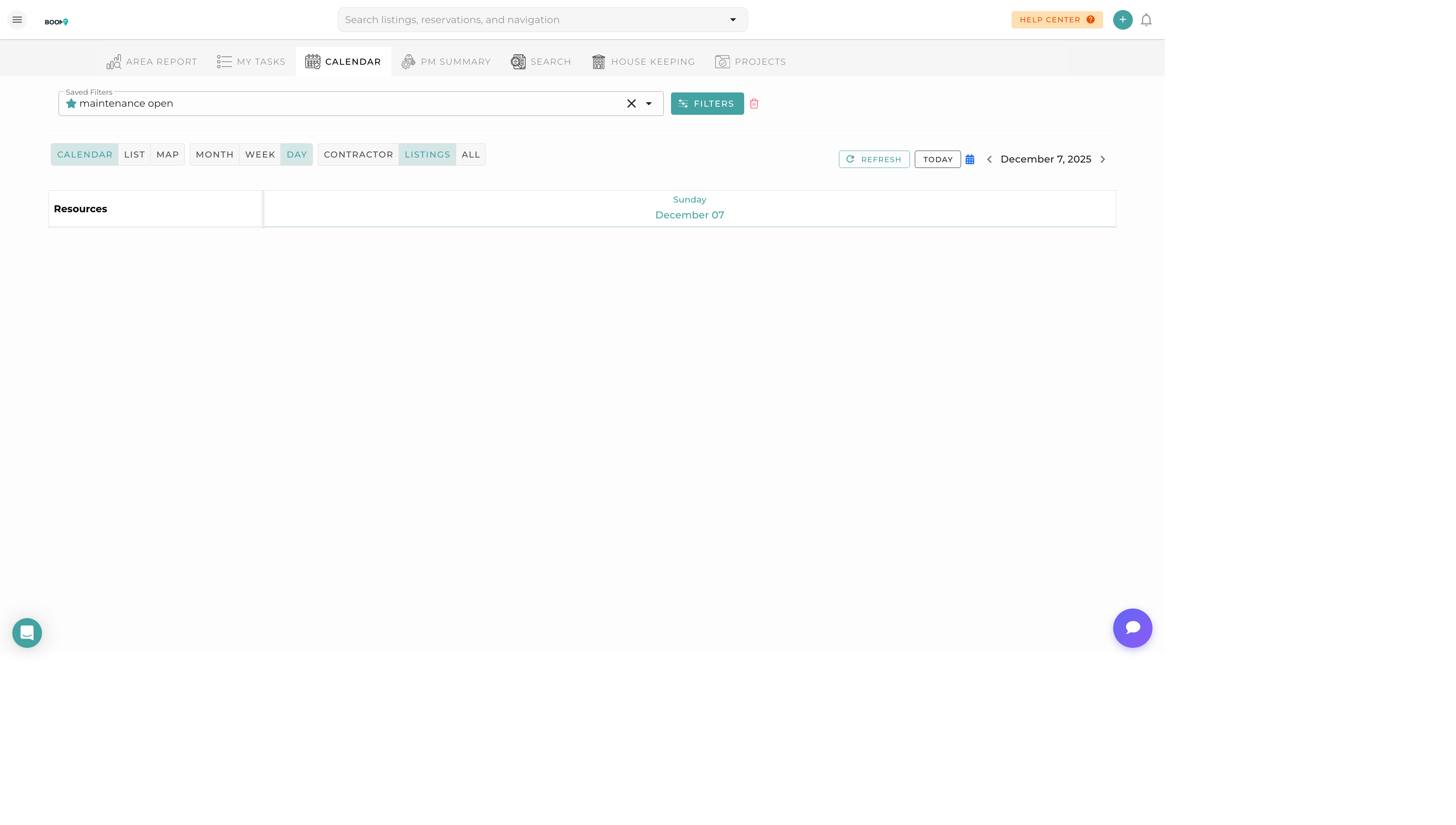
The Task Calendar (also known as Taskim) is your operations command center. It displays all tasks across your properties in a visual calendar format, making it easy to see workload distribution, identify scheduling conflicts, and manage your team's activities.
Key features include:
- Calendar view with day, week, and month options
- Task filtering by type, status, assignee, and property
- Drag-and-drop task rescheduling
- Quick task creation and assignment
- Real-time status updates
Understanding the Calendar Layout
View Options
The task calendar offers multiple view options to suit your workflow:
- Day View - Detailed hourly view of a single day
- Week View - 7-day overview showing task distribution
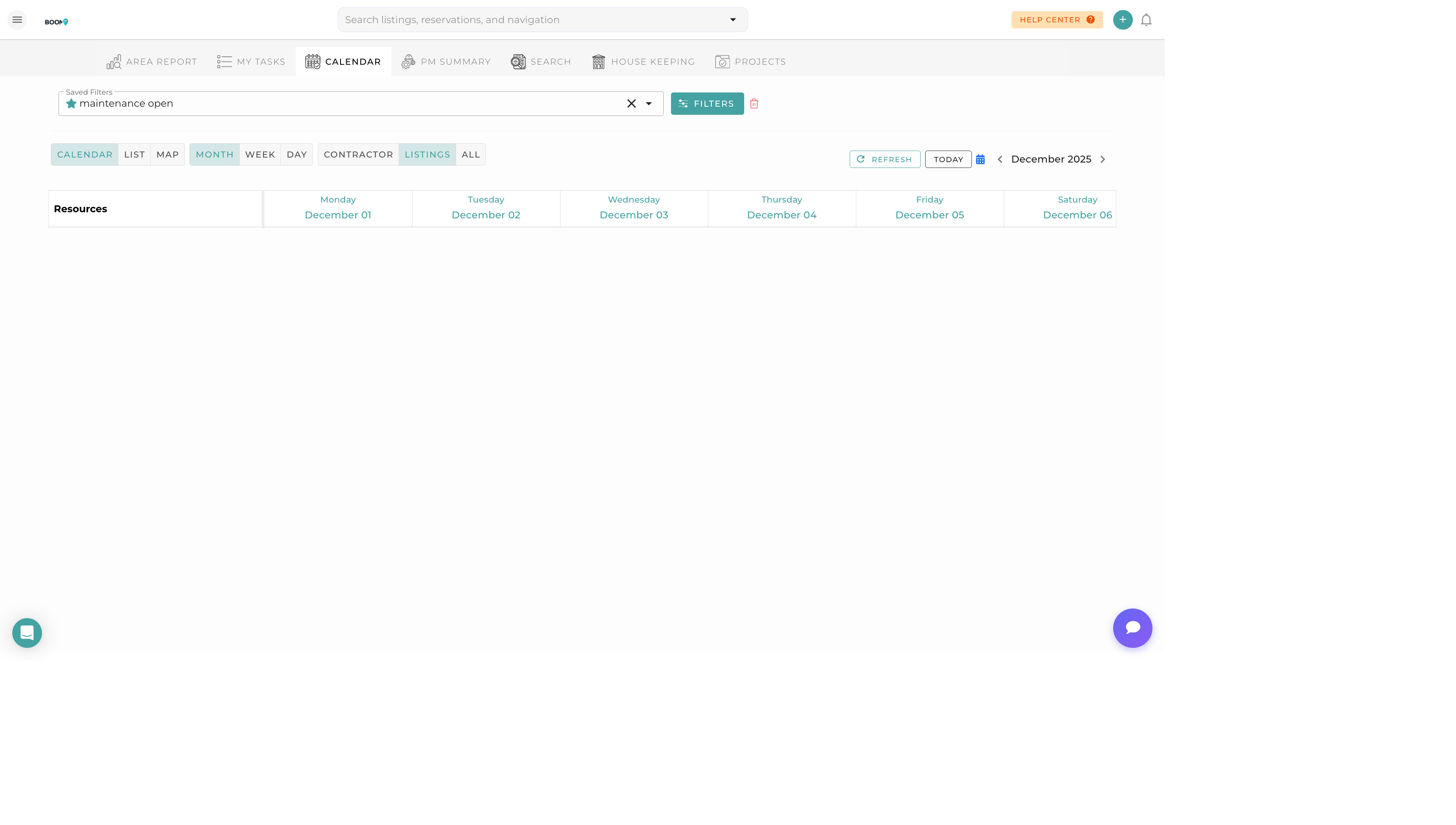
- Month View - High-level monthly calendar with task counts
Filter Options
Use the filter bar to narrow down tasks:
- Task Type - Filter by cleaning, maintenance, inspection, etc.
- Status - Show pending, in progress, or completed tasks
- Assignee - View tasks for specific team members
- Property/Zone - Filter by property or geographic zone
Task Cards
Each task on the calendar shows key information at a glance:
- Task Type Icon - Visual indicator of task category
- Property Name - Which property the task is for
- Time - Scheduled start time
- Assignee - Who is responsible
- Status Color - Quick visual status indicator
Task Types
The task calendar organizes tasks by type for easy identification:
| Type | Description |
|---|---|
| Cleaning | Turnover cleans, deep cleans, and routine housekeeping |
| Maintenance | Repairs, equipment servicing, and property upkeep |
| Inspection | Pre-arrival and post-checkout property inspections |
| Guest Service | Guest requests, amenity setups, and special arrangements |
| Administrative | Office tasks, paperwork, and coordination activities |
Pro Tips
Drag and Drop
Drag tasks between days or time slots to quickly reschedule. The system will automatically notify assigned team members of the change.
Quick Task Creation
Click on any empty calendar slot to quickly create a new task for that date and time.
Watch for Overloaded Days
If you see many tasks stacked on a single day, consider redistributing to ensure quality work and prevent team burnout.
Was this guide helpful?
Thanks for your feedback!