Overview
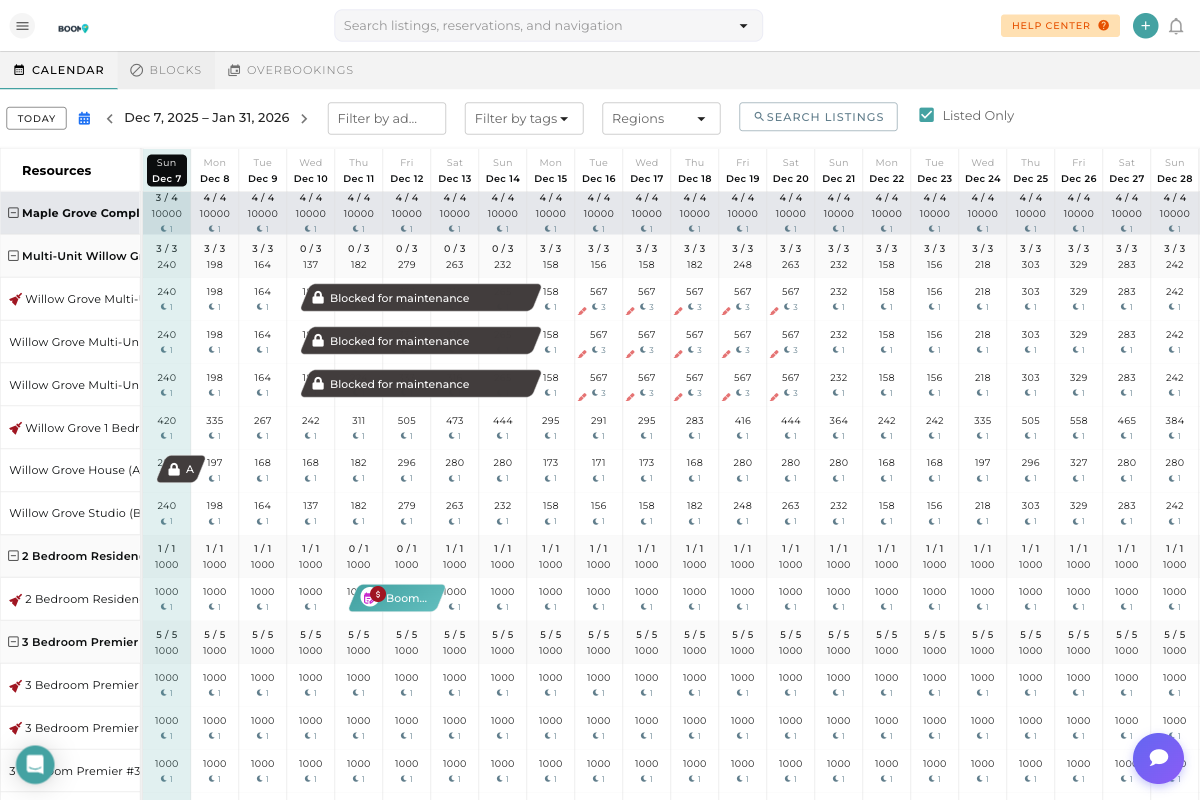
The multi-calendar in Boom PMS displays pricing information directly in each date cell, giving you instant visibility into your rates across all properties. This helps you quickly identify pricing patterns, spot opportunities, and ensure your rates are competitive.
Understanding what each number means helps you make better pricing decisions and identify issues before they impact your revenue.
Reading Calendar Prices
Each date cell on the calendar contains pricing information:
- Top number - Availability ratio (e.g., "3/3" means 3 of 3 units available)
- Middle number - The nightly rate for that date (e.g., "$198")
- Small icon - Minimum stay indicator showing night requirements
The availability ratio appears at the top of each cell:
- "3/3" - All 3 units are available
- "0/3" - No units available (fully booked or blocked)
- "1/3" - 1 unit available, 2 are booked or blocked
For single-unit properties, this shows "1/1" when available and "0/1" when booked.
The large number shows the base nightly rate:
- Rates are shown in your account's default currency
- This is the per-night price before fees and taxes
- Rates may vary by date due to dynamic pricing or seasonal adjustments
A small icon shows minimum night requirements:
- The number indicates the minimum nights required to book
- Higher minimums are common for weekends and peak seasons
- No icon usually means no special minimum (defaults to property setting)
Understanding Price Variations
You'll notice prices vary across dates. Here's why:
| Price Factor | Description |
|---|---|
| Day of Week | Weekends often have higher rates than weekdays |
| Seasonality | Peak seasons (holidays, events) command premium rates |
| Dynamic Pricing | Rates adjust based on demand and occupancy |
| Special Events | Local events or holidays can spike prices |
| Last-Minute Discounts | Prices may drop for nearby dates with no bookings |
Where Prices Come From
Each property has a base rate configured in its settings. This is the default price when no other pricing rules apply.
Custom pricing rules can override base rates:
- Seasonal rates for high and low seasons
- Weekend vs. weekday pricing
- Special event pricing
- Length-of-stay discounts
If connected to dynamic pricing tools:
- PriceLabs - Automatic rate optimization
- Wheelhouse - Market-based pricing
- Beyond Pricing - Revenue management
These tools update rates automatically based on market conditions.
Pro Tips
What's Next?
Now that you understand the pricing view:
- Learn about Pricing Strategies to optimize your rates
- Set up Seasonal Pricing for peak and low seasons
- Explore Dynamic Pricing Integrations for automated rate optimization
- Return to Calendar & Scheduling for more guides
Was this guide helpful?
Thanks for your feedback!