Overview
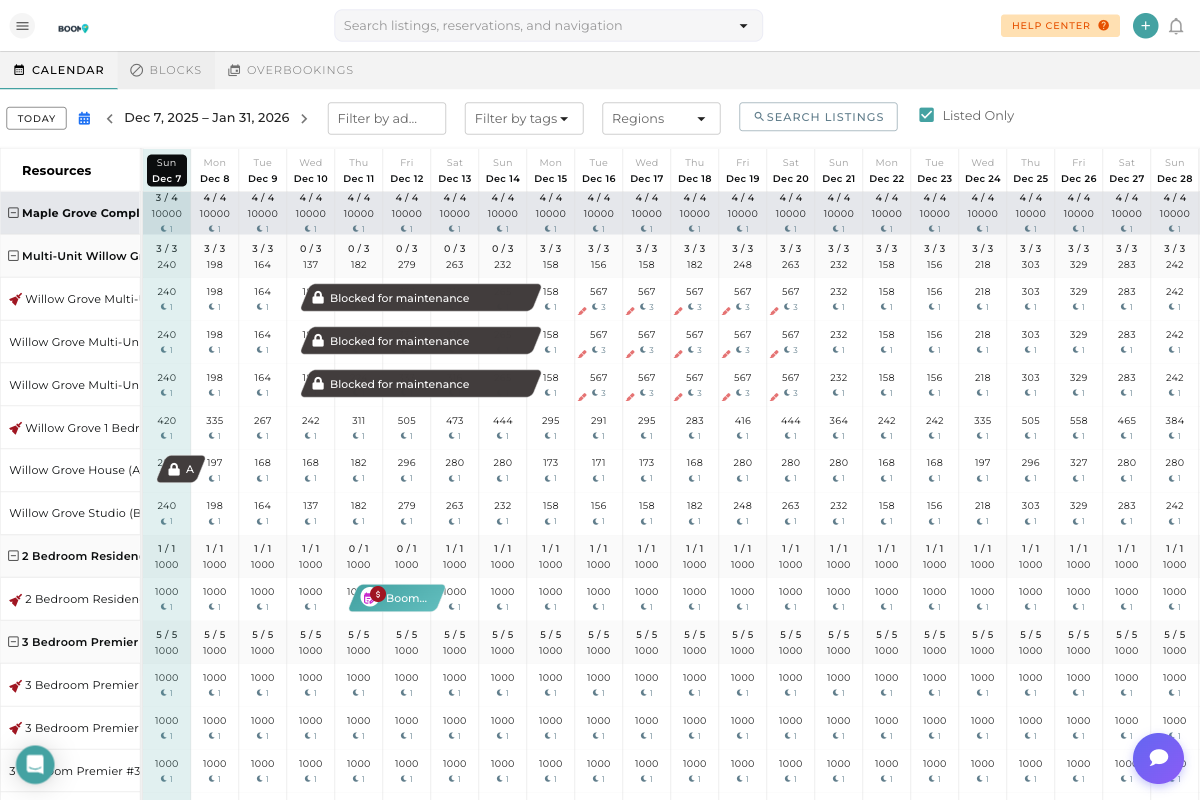
The multi-calendar is the heart of Boom PMS, giving you a comprehensive view of all your properties, their availability, and reservations in one place. Whether you manage 5 properties or 500, this view lets you see everything at a glance.
From the multi-calendar, you can:
- View all properties and their availability across any date range
- See reservations with guest names and booking details
- Identify blocked dates and maintenance periods
- View pricing for each property by date
- Create new reservations by clicking on available dates
Understanding the Calendar Layout
The top toolbar provides essential navigation and filtering controls:
- TODAY Button - Jump instantly to today's date
- Date Picker - Click on the date range to open a calendar for quick navigation
- Navigation Arrows - Move forward or backward through dates
- Filter by Address - Search properties by location
- Filter by Tags - Filter by property tags you've created
- Regions - Filter by geographic regions
- Search Listings - Find specific properties quickly
- Listed Only - Toggle to show only active listings
The left column shows all your properties (called "Resources"). Each row represents one property:
- Property Name - Click to open property details
- Channel Icons - Small icons showing which channels the property is listed on (Airbnb, VRBO, Booking.com, etc.)
- Multi-Unit Expansion - Properties with multiple units can be expanded to show individual units
The main grid displays dates across the top and properties down the left side. Each cell shows:
- Availability Ratio - Numbers like "3/3" show available units / total units
- Nightly Rate - The price for that date (e.g., $198, $164)
- Minimum Stay Icon - Small icon showing minimum night requirements
- Reservations - Colored bars spanning multiple days represent bookings
- Blocked Dates - Gray bars with "Blocked for maintenance" or similar text
Above the calendar, you'll find tabs to switch between different views:
- CALENDAR - The main multi-calendar view (default)
- BLOCKS - View and manage blocked dates across all properties
- OVERBOOKINGS - See any conflicting reservations that need attention
Color Coding Guide
Reservations on the calendar are color-coded by their booking source to help you quickly identify where each booking came from:
| Color | Booking Source |
|---|---|
| Blue | Direct bookings (your website or manual entry) |
| Red/Coral | Airbnb reservations |
| Green | Booking.com reservations |
| Purple | VRBO/HomeAway reservations |
| Gray | Blocked dates (maintenance, owner stays, etc.) |
Pro Tips
T on your keyboard to instantly jump to today's date on the calendar.What's Next?
Now that you understand the calendar layout, learn how to use it effectively:
- Learn to Navigate the Calendar efficiently
- Master Blocking Dates for maintenance and owner stays
- Use Calendar Filters to focus on specific properties
- Understand the Pricing View to monitor rates
Was this guide helpful?
Thanks for your feedback!