Overview
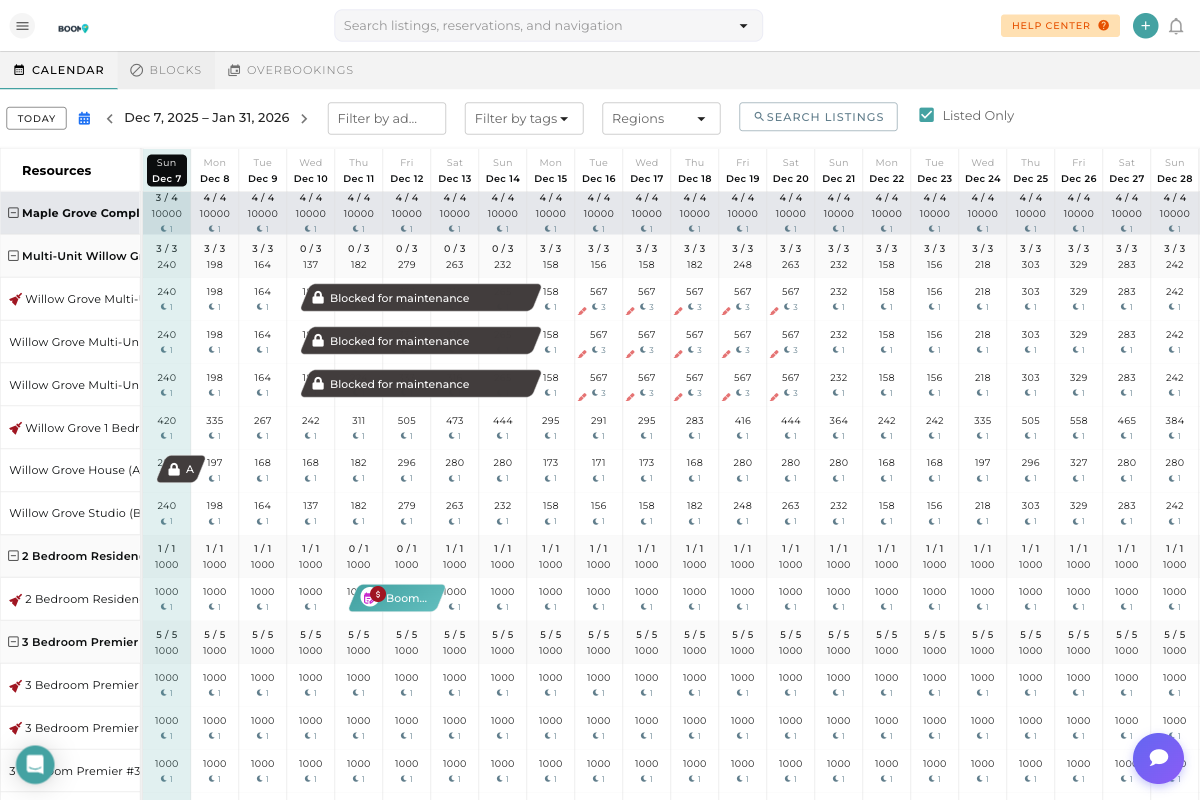
When managing many properties, finding specific listings on the calendar can be challenging. Boom PMS provides powerful filtering options to help you focus on exactly what you need to see.
Filters are available in the toolbar at the top of the calendar and can be combined to create precise views of your portfolio.
Available Filters
Search properties by their physical location:
- Click the "Filter by address" field
- Type a street name, city, or any part of the address
- The calendar will instantly filter to show only matching properties
This is useful when you need to see all properties in a specific neighborhood or building.
Use custom tags you've assigned to properties:
- Click the "Filter by tags" dropdown
- Select one or more tags from the list
- Only properties with those tags will be displayed
Common tags include: "Pet Friendly", "Beachfront", "Luxury", "Budget", etc.
Filter by geographic regions you've defined:
- Click the "Regions" dropdown
- Select a region (e.g., "Downtown", "Beach Area", "Mountain Properties")
- The calendar shows only properties in that region
Regions are configured in your account settings and help organize properties geographically.
Find specific properties by name:
- Click the "Search Listings" button
- Type the property name (partial matches work)
- Select from the dropdown results
This is the fastest way to find a specific property when you know its name.
Control visibility of inactive listings:
- Check "Listed Only" to show only active listings
- Uncheck to see all properties, including unlisted ones
By default, this is enabled to keep your calendar focused on properties that are actively accepting bookings.
Combining Filters
Filters can be combined to create highly specific views:
| Example Scenario | Filters to Use |
|---|---|
| All beach properties in Miami | Region: "Miami" + Tag: "Beachfront" |
| Pet-friendly rentals on Main Street | Address: "Main Street" + Tag: "Pet Friendly" |
| Luxury properties currently listed | Tag: "Luxury" + Listed Only: checked |
| All unlisted properties for review | Listed Only: unchecked (to see unlisted) |
Clearing Filters
To clear a specific filter:
- Click the X icon next to the filter value
- Or clear the text from search fields
- The calendar will update immediately
To return to the full calendar view:
- Clear each active filter individually
- Or refresh the page to reset everything
Pro Tips
What's Next?
With filtering mastered, explore other calendar features:
- Understand the Pricing View to monitor rates
- Return to the Multi-Calendar Overview for a refresher
- Learn about Creating Reservations from the calendar
Was this guide helpful?
Thanks for your feedback!