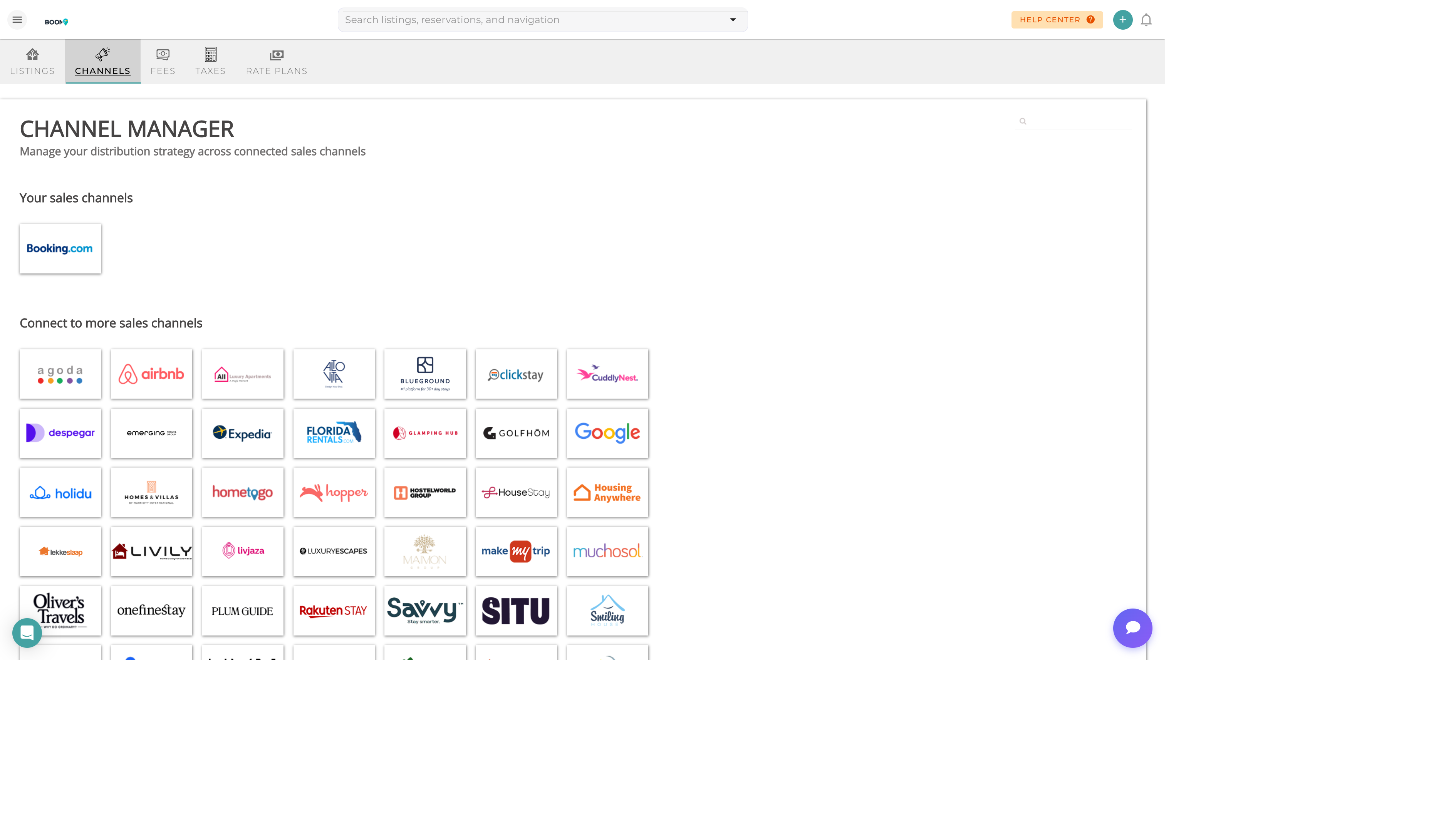
Overview
Channel sync ensures your availability, pricing, and content remain consistent across all connected booking platforms. This prevents double bookings and ensures guests always see accurate information.
How Sync Works
Automatic Sync
Most updates are pushed automatically:
- Reservations - New bookings block availability within seconds
- Cancellations - Availability reopens automatically
- Price Changes - Rate updates push within minutes
- Blocks - Manual blocks sync to all channels
Sync Frequency
- Availability - Real-time (push-based)
- Pricing - Every 5-15 minutes (batched)
- Reservations - Real-time (webhook-based)
- Content - On-demand (manual trigger)
Monitoring Sync Status
Status Indicators
- Green - Fully synced, no issues
- Yellow - Sync pending or minor warning
- Red - Sync error requiring attention
Sync Log
View detailed sync history in the channel manager. The log shows:
- Timestamp of each sync operation
- Type of update (availability, pricing, reservation)
- Success or failure status
- Error details if sync failed
Manual Sync Options
Force Sync
Trigger an immediate sync when you need changes to reflect quickly:
- Single Property - Click "Sync Now" on the property row
- All Properties - Use "Sync All" in the channel manager header
- Specific Channel - Force sync to a single channel
Full Refresh
A full refresh re-sends all availability and pricing data. Use this when:
- Setting up a new channel connection
- Recovering from extended sync errors
- After bulk pricing updates
Common Sync Issues
Authentication Expired
Cause: Channel connection tokens have expired.
Solution: Reconnect the channel through the settings page.
Rate Restrictions
Cause: Some channels limit API calls or have content restrictions.
Solution: Wait for the rate limit to reset, or reduce sync frequency.
Content Mismatch
Cause: Property information doesn't meet channel requirements.
Solution: Review and update property content to meet channel standards.
Connection Timeout
Cause: Network issues or channel API unavailability.
Solution: Usually resolves automatically. Check channel status page if persistent.
Best Practices
Centralize Updates
Always make changes in Boom PMS rather than directly on channels. This ensures consistency and prevents sync conflicts.
Monitor Regularly
Check the channel manager dashboard daily to catch and resolve sync issues quickly.
Test Changes
After making significant pricing or availability changes, verify they appear correctly on each channel.