Overview
Connect your Booking.com Extranet account to Boom PMS for synchronized availability, rates, and reservation management. This integration supports both existing Booking.com properties and new listings.
Prerequisites
- Active Booking.com partner account
- Properties approved on Booking.com
- Admin access in Boom PMS
- Booking.com Extranet credentials
Connection Steps
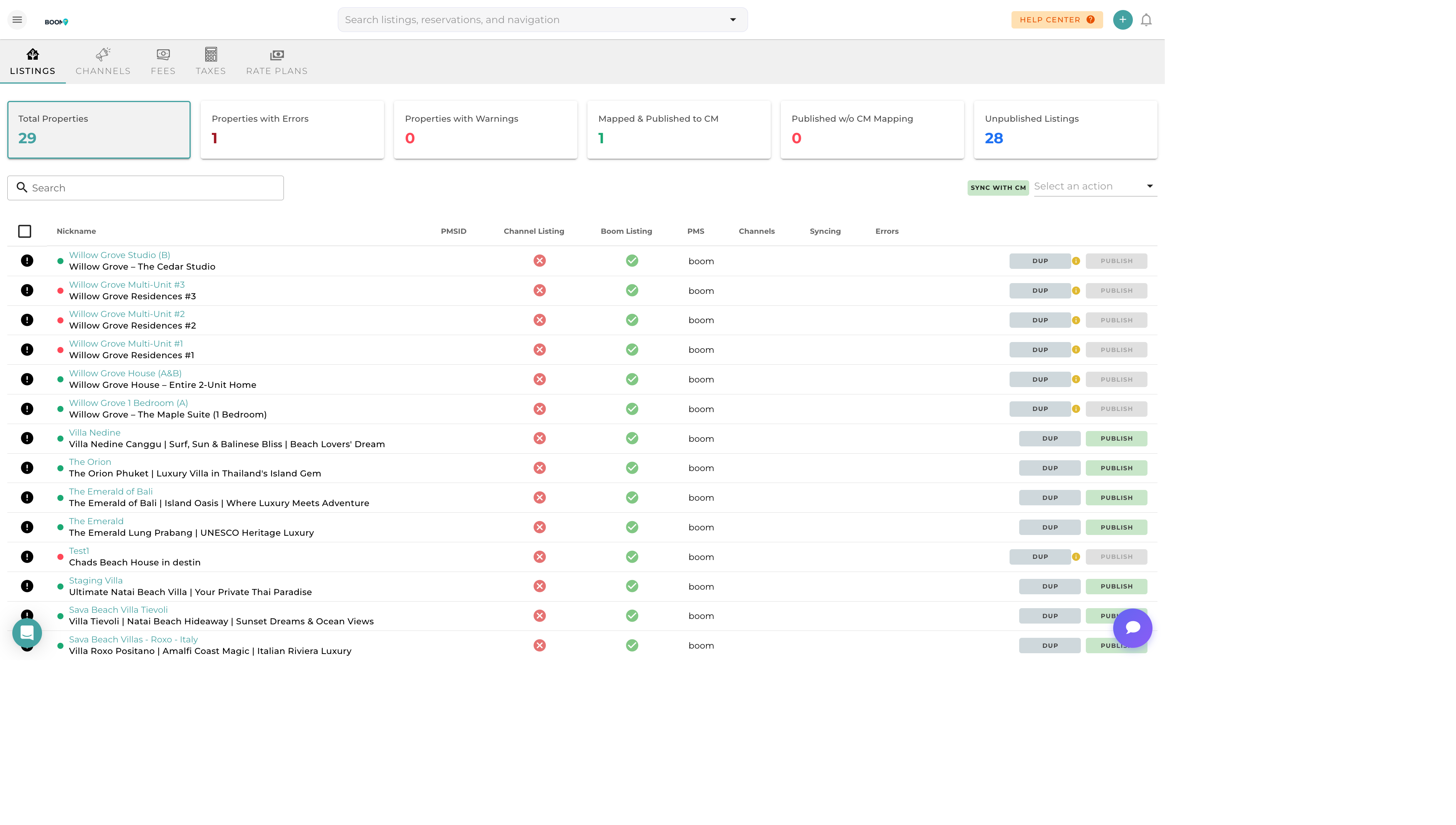
Navigate to Channel Manager
Go to Marketing > Channel Manager and click on the "Channels" tab.
Select Booking.com
Find Booking.com in the available channels list and click "Connect".
Enter Property Details
Provide your Booking.com property ID and legal entity information as requested.
XML Connection Setup
Booking.com uses XML connectivity. Our system will generate the required credentials for you to enter in the Booking.com Extranet under Connectivity Provider settings.
Verify Connection
Once configured in both systems, the connection will be verified automatically. This may take a few hours for Booking.com to process.
Map Room Types
After connection, map Booking.com room types to your Boom properties to ensure correct rate and availability sync.
What Syncs
Availability (Two-Way)
- Calendar blocks and availability
- Booking.com reservations import to Boom
- Automatic inventory updates
Rates (Boom to Booking.com)
- Base nightly rates
- Rate plans (standard, non-refundable, etc.)
- Occupancy-based pricing
- Length of stay discounts
Reservations (Booking.com to Boom)
- Guest details and contact information
- Reservation dates and room type
- Payment information and status
- Special requests and comments
Restrictions
- Minimum/maximum stay
- Closed to arrival/departure
- Stop sell
Booking.com Extranet Settings
After connecting, configure these settings in your Booking.com Extranet:
- Connectivity Provider - Set Boom PMS as your channel manager
- Rate Management - Allow channel manager to control rates
- Availability - Enable external availability management
- Content - Optionally allow content updates from PMS
Troubleshooting
Connection Pending
- Booking.com connections can take up to 24 hours to activate
- Verify credentials were entered correctly in the Extranet
- Contact Booking.com Partner Support if pending longer than 48 hours
Rate Sync Issues
- Ensure rate plan mapping is correct
- Check that rates meet Booking.com minimum requirements
- Verify currency settings match between systems
Missing Reservations
- Confirm room type mapping is complete
- Check sync logs for error messages
- Verify the reservation exists in Booking.com Extranet