Overview
Creating a reservation in Boom PMS is straightforward. You can create reservations directly from the multi-calendar by clicking on available dates, or through the reservation form. This guide walks you through creating a manual (direct) reservation.
Manual reservations are perfect for:
- Direct bookings from your website
- Phone or email inquiries
- Owner stays and maintenance blocks
- Reservations from channels not yet connected
Step-by-Step Instructions
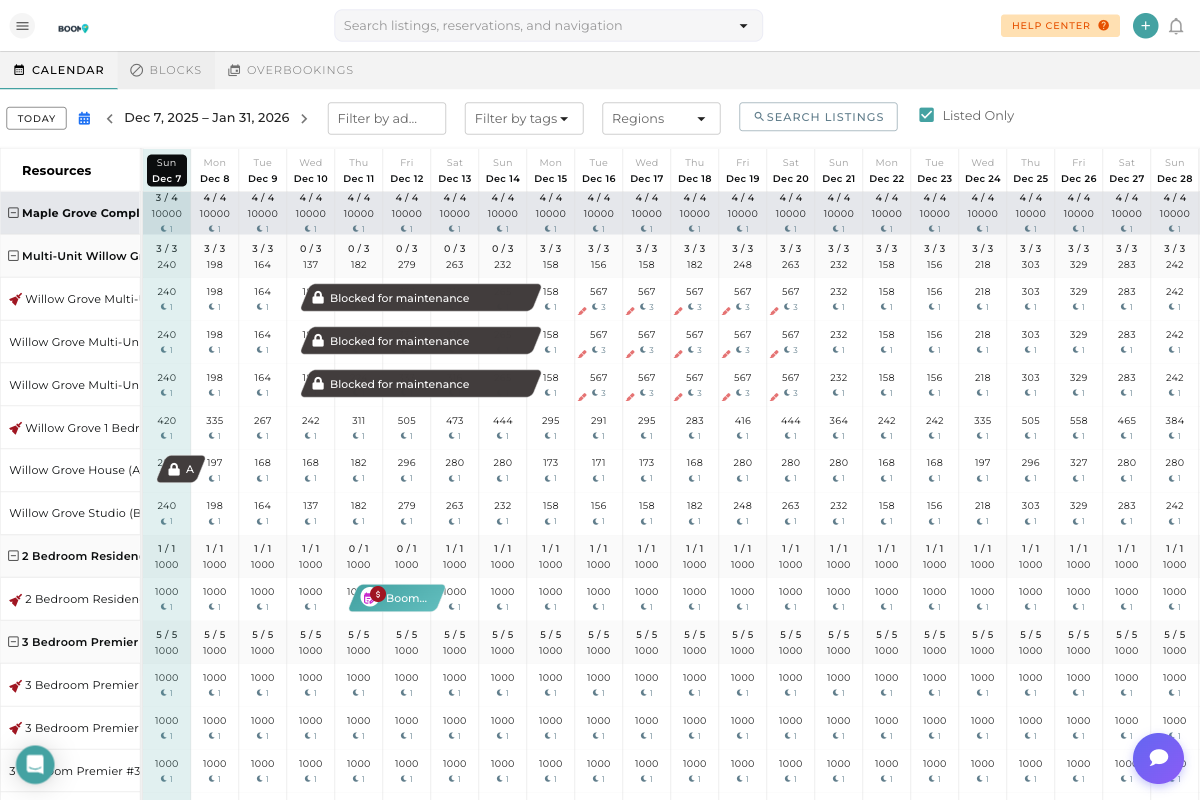
Navigate to the multi-calendar view. You'll see all your properties listed on the left side, with their availability displayed in the calendar grid.
The calendar shows:
- Available dates - White/empty cells with pricing shown
- Reservations - Colored bars spanning the stay dates
- Blocked dates - Greyed out cells marked "Blocked"
Find the property you want to book and click on the check-in date. A reservation form will appear.
Tip: You can also drag across multiple dates to set both check-in and check-out at once.
Use the filters at the top to find properties:
- Filter by address - Search by property name or address
- Filter by tags - Filter by property tags
- Regions - Filter by geographic region
- Listed Only - Toggle to show only active listings
In the reservation form, enter the guest details:
- Guest Name - Primary guest's full name (required)
- Email - Guest's email for communication
- Phone - Contact phone number
- Number of Guests - Total adults and children
If the guest has stayed before, start typing their name and select from the dropdown to auto-fill their information.
The system automatically calculates pricing based on:
- Nightly rate - Base price per night
- Cleaning fee - One-time cleaning charge
- Service fee - Platform or booking fees
- Taxes - Applicable local taxes
You can adjust the pricing manually if needed for special discounts or promotions.
Configure how and when payment is due:
- Payment schedule - Full payment now, deposit, or split payments
- Payment method - Credit card, bank transfer, or cash
- Due dates - When each payment installment is due
Click Save to create the reservation. The system will:
- Block the dates on the calendar
- Create a guest profile (if new guest)
- Generate an invoice
- Trigger any automated messages (if configured)
- Create cleaning and checkout tasks (if auto-tasks enabled)
You'll be redirected to the reservation details page where you can view and manage the booking.
Field Reference
| Field | Description | Required |
|---|---|---|
| Property | The listing being booked | Yes |
| Check-in Date | Guest arrival date | Yes |
| Check-out Date | Guest departure date | Yes |
| Guest Name | Primary guest's full name | Yes |
| Guest Email | Email for confirmations and communications | No |
| Guest Phone | Phone number for SMS and calls | No |
| Number of Guests | Total number of adults and children | No |
| Source/Channel | Where the booking originated (Direct, Airbnb, etc.) | No |
| Notes | Internal notes about the reservation | No |
Pro Tips
Troubleshooting
Dates can be blocked for several reasons:
- Existing reservation from another channel
- Manual block for maintenance or owner stay
- Channel sync from Airbnb, Booking.com, etc.
Click on the blocked dates to see the reason. To free up blocked dates, you'll need to remove the block or cancel the existing reservation.
Check these common causes:
- Seasonal pricing may be active for these dates
- Dynamic pricing engine (PriceLabs, Wheelhouse) may have adjusted rates
- Special event pricing may be applied
You can manually adjust the price in the reservation form if needed.
Check these items:
- Verify the guest email address is correct
- Check if auto-messages are configured for new reservations
- Ask the guest to check their spam/junk folder
- Manually resend the confirmation from the reservation details page
Was this guide helpful?
Thanks for your feedback!