Overview
Creating a reservation manually in Boom PMS allows you to book guests who contact you directly, handle phone bookings, or enter reservations from other sources. The two-step process collects reservation details first, then optionally processes payment.

Ways to Create a Reservation
There are several ways to open the Create Reservation form:
| Method | How | Best For |
|---|---|---|
| Quick Add Button | Click the + button in the header and select "Reservation" | Fast access from any page |
| Calendar Drag | Click and drag across dates on a property row in the calendar | Dates pre-filled automatically |
| Calendar Click | Click on an empty date cell in the calendar | Single-night or starting date |
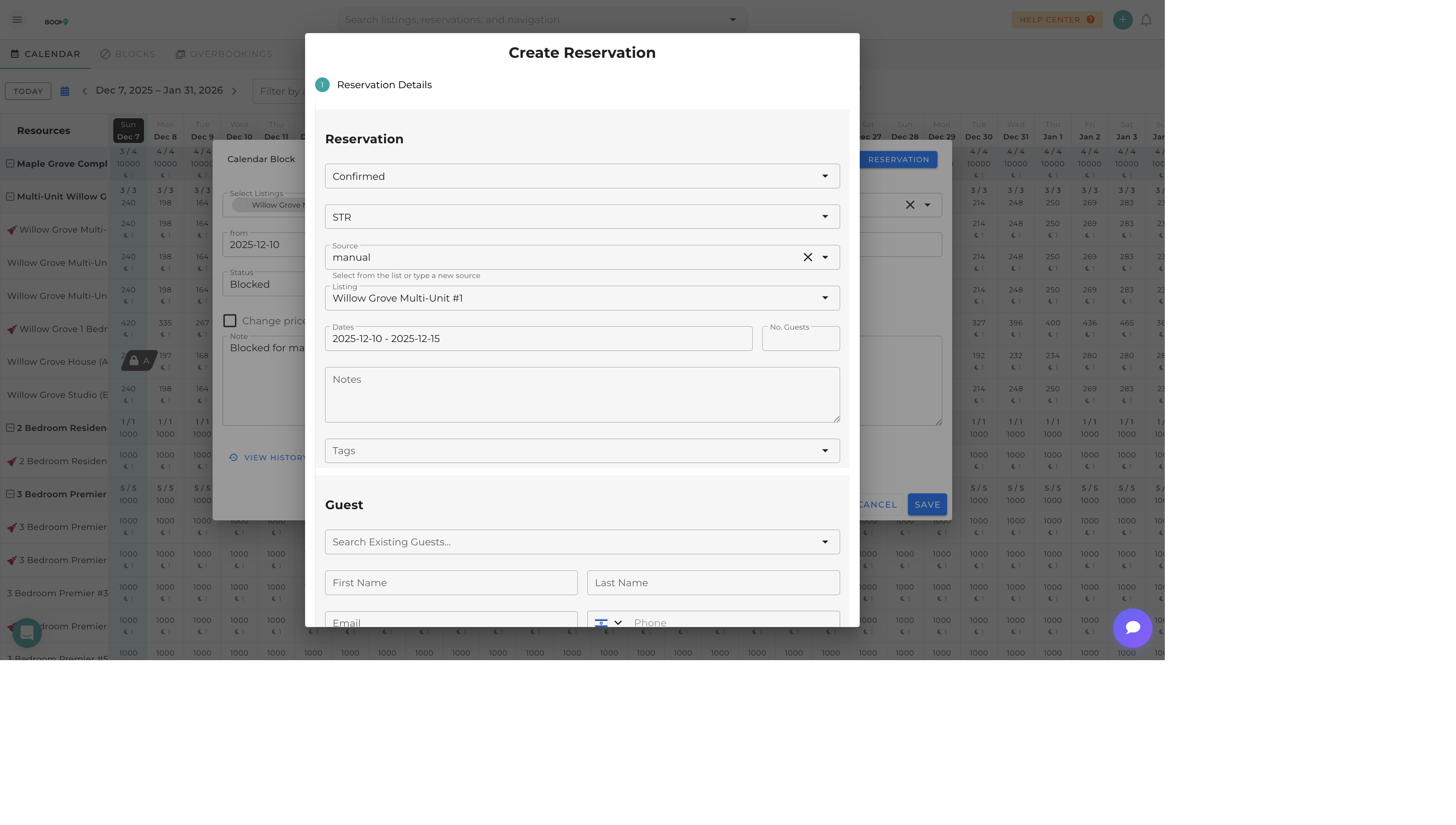
Step 1: Reservation Details
The first step collects all the essential information for your booking:
Reservation Section
| Field | Description | Options |
|---|---|---|
| Status | Current state of the reservation | Confirmed, Pending, Inquiry, Cancelled |
| Type | Rental type classification | STR (Short-Term Rental), MTR (Mid-Term Rental), LTR (Long-Term Rental) |
| Source | Where the booking originated | Manual, Phone, Email, Walk-in, Referral, or custom source |
| Listing | Property for the reservation | Select from your properties |
| Dates | Check-in and check-out dates | Date range picker |
| No. Guests | Number of guests staying | Numeric value |
| Notes | Internal notes about the booking | Free text |
| Tags | Labels for categorization | Select or create tags |
Guest Section
You can either search for an existing guest or enter new guest information:
| Field | Description | Required |
|---|---|---|
| Search Existing Guests | Find a guest already in your database | No |
| First Name | Guest's first name | Yes |
| Last Name | Guest's last name | Yes |
| Contact email address | Recommended | |
| Phone | Phone number with country code | Recommended |
| Home Town | Guest's city or location | No |
| Local Citizen | Checkbox for local resident status | No |
Financial Section
| Field | Description |
|---|---|
| Accommodation Fare | Total nightly rate for the stay (auto-calculated based on dates if pricing is set) |
| Cleaning Fare | One-time cleaning fee (auto-filled from property settings) |
| Total | Sum of accommodation and cleaning (taxes calculated separately) |
Step 2: Payment Details
After entering reservation details, click Continue to proceed to payment collection. You can also click Skip without pay to create the reservation without collecting payment.
Payment Options
- Full Payment - Collect the entire reservation amount
- Deposit Only - Collect a partial payment or security deposit
- Skip Payment - Create reservation and collect payment later
Payment Methods
- Credit Card - Process via Stripe (if configured)
- Bank Transfer - Record a manual bank transfer
- Cash - Record a cash payment
- Check - Record payment by check
- Other - Custom payment method
Quick Create from Calendar
The fastest way to create a reservation is directly from the Multi-Calendar:
-
Navigate to the Calendar
Go to the Multi-Calendar view from the main menu
-
Find Your Property
Locate the property row where you want to create the reservation
-
Drag to Select Dates
Click on the check-in date and drag to the check-out date
-
Complete the Form
The Create Reservation dialog opens with dates and property pre-filled
After Creating a Reservation
Once you've created a reservation, you can:
- View on Calendar - The reservation appears as a colored bar on the calendar
- Send Confirmation - Email confirmation to the guest
- Add Additional Charges - Include extra fees or services
- Set Up Pre-Check-In - Enable guest self-service check-in
- Create Tasks - Schedule cleaning or maintenance tasks
Common Issues
| Issue | Solution |
|---|---|
| Dates show as unavailable | Check for existing reservations or blocks on those dates. Use the calendar to view conflicts. |
| No pricing calculated | Ensure the property has base rates configured in its pricing settings. |
| Guest not found in search | Enter guest details manually to create a new guest profile. |
| Payment fails | Verify Stripe connection and card details. Check for sufficient funds. |
Was this guide helpful?
Thanks for your feedback!