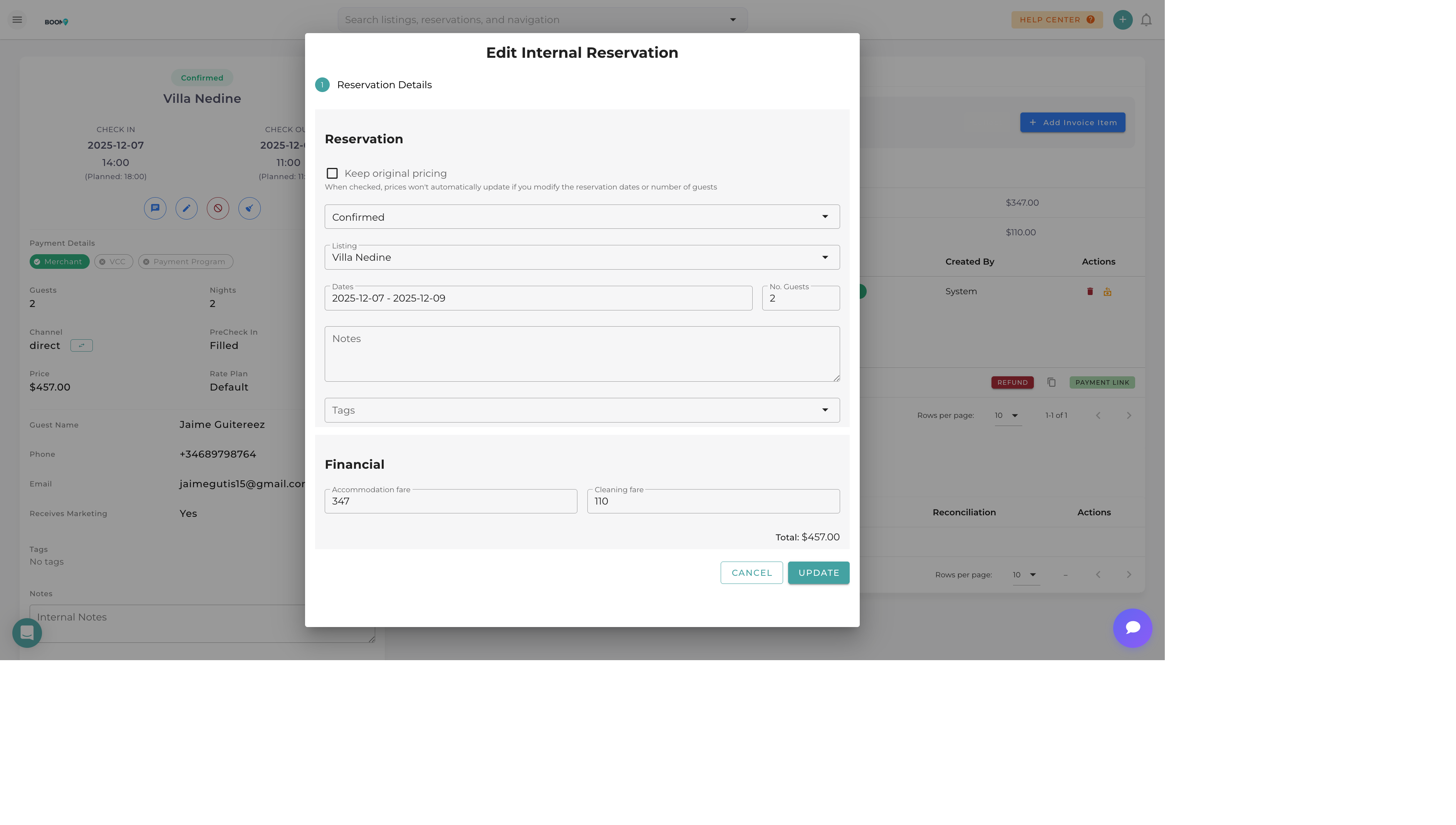
Overview
Reservation details often need to change after initial booking - guests may modify their dates, request additional services, or update their contact information. Boom PMS provides flexible editing capabilities while maintaining a complete audit trail of all changes.
Opening a Reservation to Edit
There are several ways to access a reservation for editing:
| Method | Steps |
|---|---|
| From Calendar | Click on any reservation bar in the Multi-Calendar |
| From Search | Use the global search bar to find the reservation by guest name or confirmation number |
| From Reservations List | Navigate to Reservations page and click on the reservation row |
| From Guest Profile | Open a guest profile and click on their reservation in the history |
What You Can Edit
Dates & Property
- Check-in Date - Extend or shorten the start of the stay
- Check-out Date - Modify departure date
- Property - Move to a different unit (availability permitting)
- Number of Guests - Update guest count
Guest Information
- Primary Guest - Change the main guest on the booking
- Additional Guests - Add or remove companion details
- Contact Details - Update email or phone number
- Special Requests - Note dietary restrictions, accessibility needs, etc.
Financial Details
- Base Rate - Adjust the nightly accommodation rate
- Cleaning Fee - Modify cleaning charge
- Extra Charges - Add fees for pets, extra guests, services
- Discounts - Apply promotional or loyalty discounts
- Taxes - Adjust tax calculations if needed
Status & Organization
- Status - Change between Confirmed, Pending, Cancelled
- Tags - Add or remove categorization tags
- Internal Notes - Update staff-only notes
- Source - Correct the booking source if needed
Editing Reservation Dates
From the Calendar (Drag Method)
-
Locate the Reservation
Find the reservation bar on the Multi-Calendar
-
Drag to New Dates
Click and drag the entire bar to move check-in/check-out together
-
Resize for Duration
Drag the left or right edge to change duration without moving the other date
-
Confirm Changes
A popup will show the price impact - confirm to apply
From the Reservation Details
-
Open the Reservation
Click on the reservation to open its details page
-
Click Edit
Find the Edit button or click directly on the dates field
-
Select New Dates
Use the date picker to choose new check-in and check-out dates
-
Review Price Changes
The system will show any price difference based on the new dates
-
Save Changes
Click Save to apply the modifications
Making Price Adjustments
Adding Extra Charges
Common extra charges you can add:
| Charge Type | Description |
|---|---|
| Pet Fee | One-time or nightly fee for pets |
| Extra Guest Fee | Per-night charge for guests beyond base occupancy |
| Early Check-in | Fee for arriving before standard check-in time |
| Late Check-out | Fee for departing after standard check-out time |
| Amenity Fee | Charges for pool heating, hot tub, etc. |
| Service Fee | Concierge, grocery delivery, tours |
Applying Discounts
- Percentage Discount - Apply a percentage off the total
- Fixed Amount - Deduct a specific dollar amount
- Promo Code - Apply a promotional code if configured
- Custom Adjustment - Free-form adjustment with reason
Change History & Audit Trail
Every modification to a reservation is logged with:
- Timestamp - When the change was made
- User - Who made the change
- Field Changed - What was modified
- Old Value - Previous value
- New Value - Updated value
View the complete change history in the reservation's Timeline tab.
Best Practices
- Document reasons - Add notes explaining why changes were made
- Check availability first - Before extending dates, verify the property is available
- Update related tasks - When dates change, review and update cleaning/maintenance tasks
- Reconfirm with guest - Send a new confirmation after significant modifications
Was this guide helpful?
Thanks for your feedback!