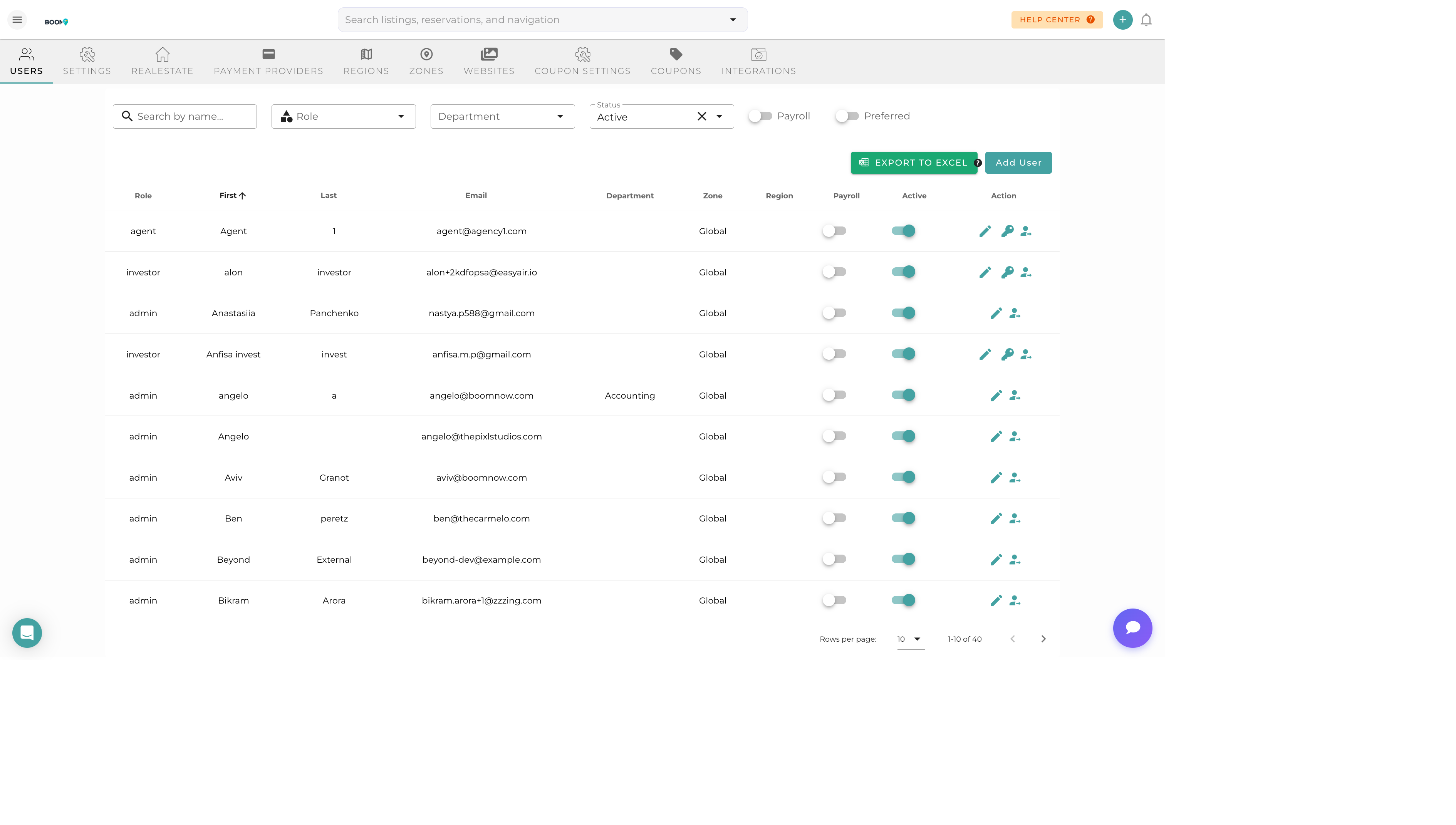
User Management: View and manage all team members
Overview
User Management allows you to control who has access to your Boom PMS account. Add new team members, assign roles, manage property access, and deactivate users who no longer need access.
User List
The user list displays all team members with:
- Name - User's full name
- Email - Login email address
- Role - Assigned role (Admin, Manager, Staff, Owner)
- Status - Active or Inactive
- Last Login - Most recent access date
Adding a New User
1
Click Add User
Click the "Add User" or "Invite" button at the top of the user list.
2
Enter User Details
Fill in the required information: name, email, phone number.
3
Assign Role
Select the appropriate role for the user's responsibilities.
4
Set Property Access
Choose which properties the user can access (all or specific properties).
5
Send Invitation
Click "Invite" to send a welcome email with login instructions.
Editing Users
Click on any user to edit their:
- Personal information (name, phone)
- Role assignment
- Property access
- Notification preferences
Deactivating Users
When a team member leaves or no longer needs access:
- Click on the user to open their profile
- Click "Deactivate User"
- Confirm the deactivation
Deactivated users cannot log in but their historical activity is preserved.
Pro Tips
Regular Audits
Review your user list quarterly to ensure all active users still need access. Remove or deactivate accounts that are no longer needed.
Immediate Deactivation
When team members leave, deactivate their accounts immediately. Don't wait - remove access right away for security.