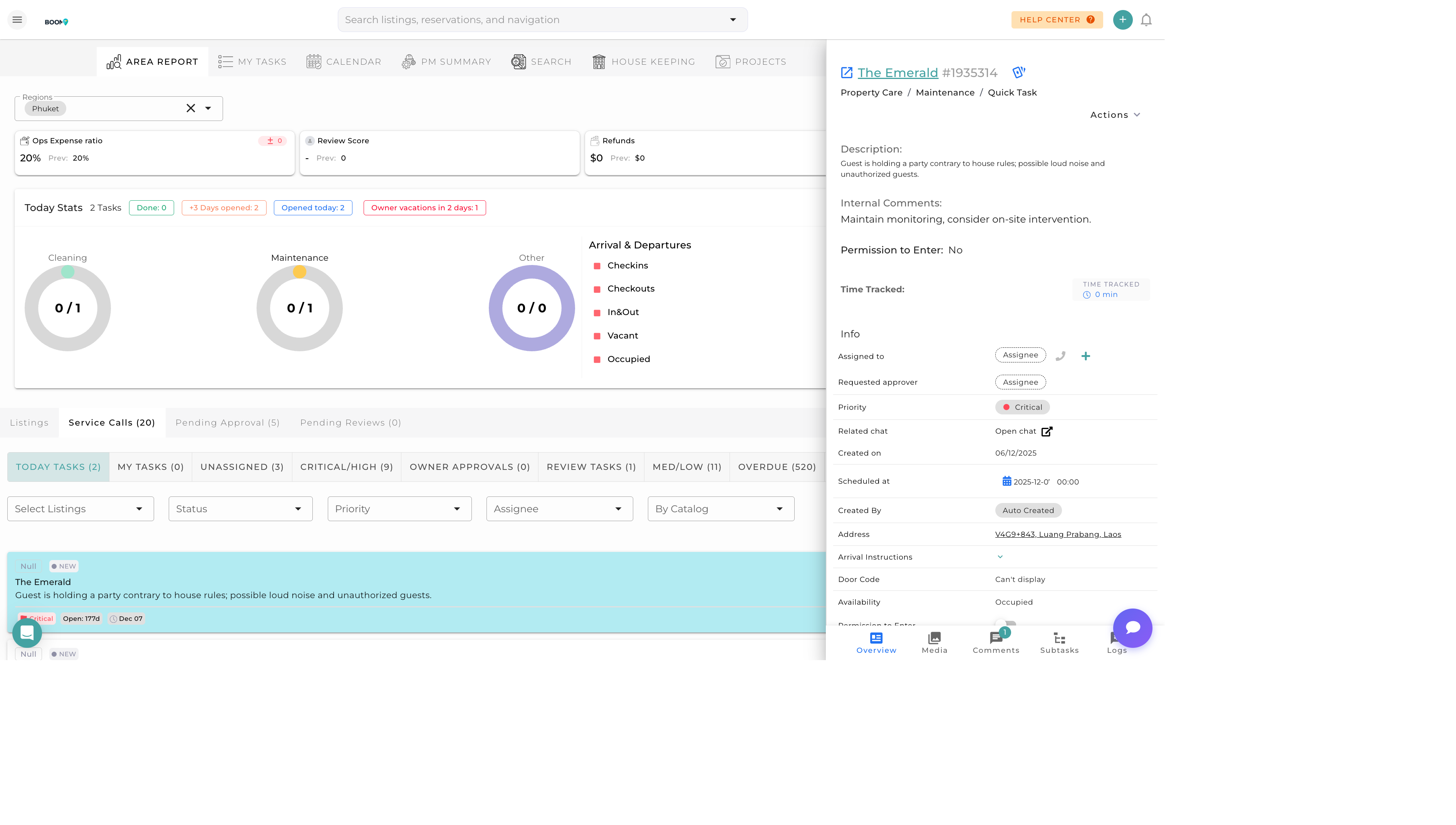
Task creation: Quickly add tasks for properties and team members
Overview
While many tasks are created automatically through rules, you can also create tasks manually for ad-hoc work, special requests, or one-time maintenance needs.
Creating a Task
1
Open Task Creation
Click the "+" button in the Task Calendar or use the "New Task" button in any task view.
2
Select Task Type
Choose the type of task:
- Cleaning - Standard or deep cleaning
- Maintenance - Repairs and fixes
- Inspection - Property checks
- Delivery - Supply drops
- Custom - Other task types
3
Select Property
Choose which property the task is for. Start typing to search.
4
Set Date & Time
Specify when the task should be completed. Set both date and preferred time window.
5
Assign Team Member
Select who should complete the task. You can assign to an individual or leave unassigned for anyone to pick up.
6
Add Details
Include a description with specific instructions, priority level, and any required supplies.
7
Save Task
Click "Create" to save the task. The assignee will be notified automatically.
Task Fields
Required Fields
- Task Type - Category of work
- Property - Which property
- Due Date - When it's due
Optional Fields
- Assignee - Who should do it
- Priority - Low, Normal, High, Urgent
- Description - Detailed instructions
- Estimated Duration - How long it should take
- Linked Reservation - Associated booking
- Photos Required - Require before/after photos
- Checklist - Subtasks to complete
Quick Create Options
Create tasks quickly from different contexts:
- From Calendar - Click on a date/property cell
- From Reservation - Create task linked to a booking
- From Property - Create task from property details
- From Template - Use a saved task template
Pro Tips
Use Templates
For recurring task types, create templates to save time. Templates pre-fill all the standard fields.
Add Checklists
For complex tasks, add a checklist of subtasks. This ensures nothing is missed and provides clear completion criteria.