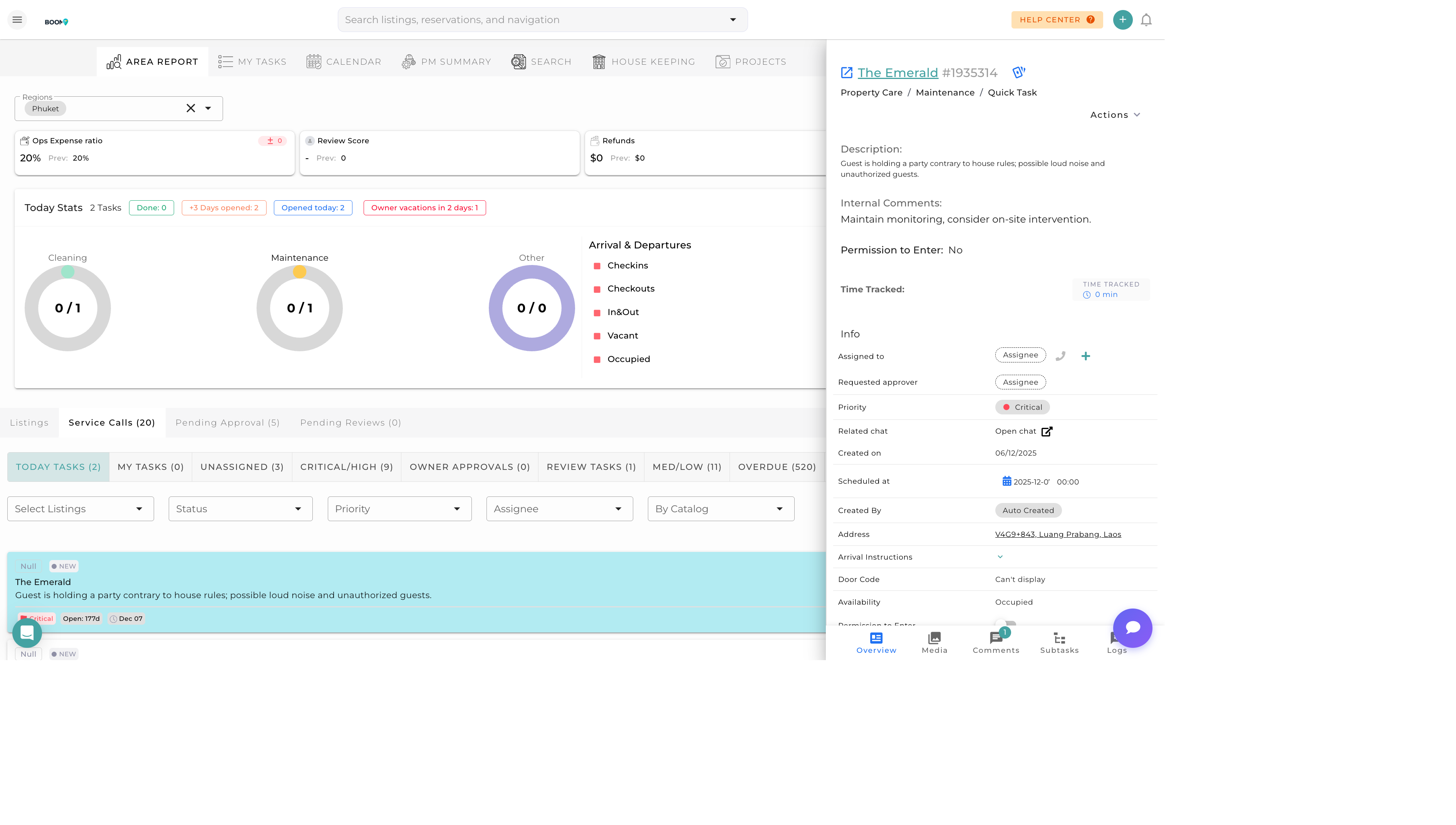
Task Assignment: Delegate work to team members
Overview
Task assignment determines who is responsible for completing each task. You can assign tasks to internal team members or external contractors, set up automatic assignment rules, and manage workload distribution.
Assignment Methods
Manual Assignment
Directly assign a task to a specific person:
- Open the task and select an assignee
- Search by name or filter by role
- The assignee receives an instant notification
Automatic Assignment
Set up rules to auto-assign tasks based on:
- Property - Assign based on property's default team
- Region - Route to regional team members
- Task Type - Specialists for specific work
- Workload - Balance across available team
Pool Assignment
Assign to a group and let team members claim tasks:
- Task goes to a shared pool
- Any qualified team member can claim it
- First to claim becomes the assignee
Assigning a Task
1
Open Task Details
Click on the task to open the details drawer.
2
Click Assignee Field
Click on the assignee field to see available team members.
3
Select Team Member
Choose from the list or search by name. You can see each person's current workload.
4
Confirm Assignment
Save the task. The assignee is notified via their preferred channel (app, email, or SMS).
Bulk Assignment
Assign multiple tasks at once:
- Select multiple tasks using checkboxes
- Click "Assign" from the bulk actions menu
- Choose the assignee for all selected tasks
- Optionally distribute evenly across team
Reassigning Tasks
If a task needs to be reassigned:
- Open the task and change the assignee
- Add a note explaining the reassignment
- Both original and new assignee are notified
- Task history tracks all assignment changes
Contractor Assignment
For external contractors:
- Contractors appear in a separate section
- They receive tasks via email or contractor portal
- Can accept or decline assignments
- Track their acceptance and completion rates
Pro Tips
Check Availability
Review team member calendars and current workload before assigning. Overloaded team members lead to delayed tasks.
Set Default Assignees
Configure default assignees for each property. This saves time and ensures consistent team assignment.