Overview
Efficient navigation is key to managing your calendar effectively. Boom PMS provides several ways to move through dates, from quick keyboard shortcuts to visual date pickers. This guide covers all the navigation tools at your disposal.
Navigation Methods
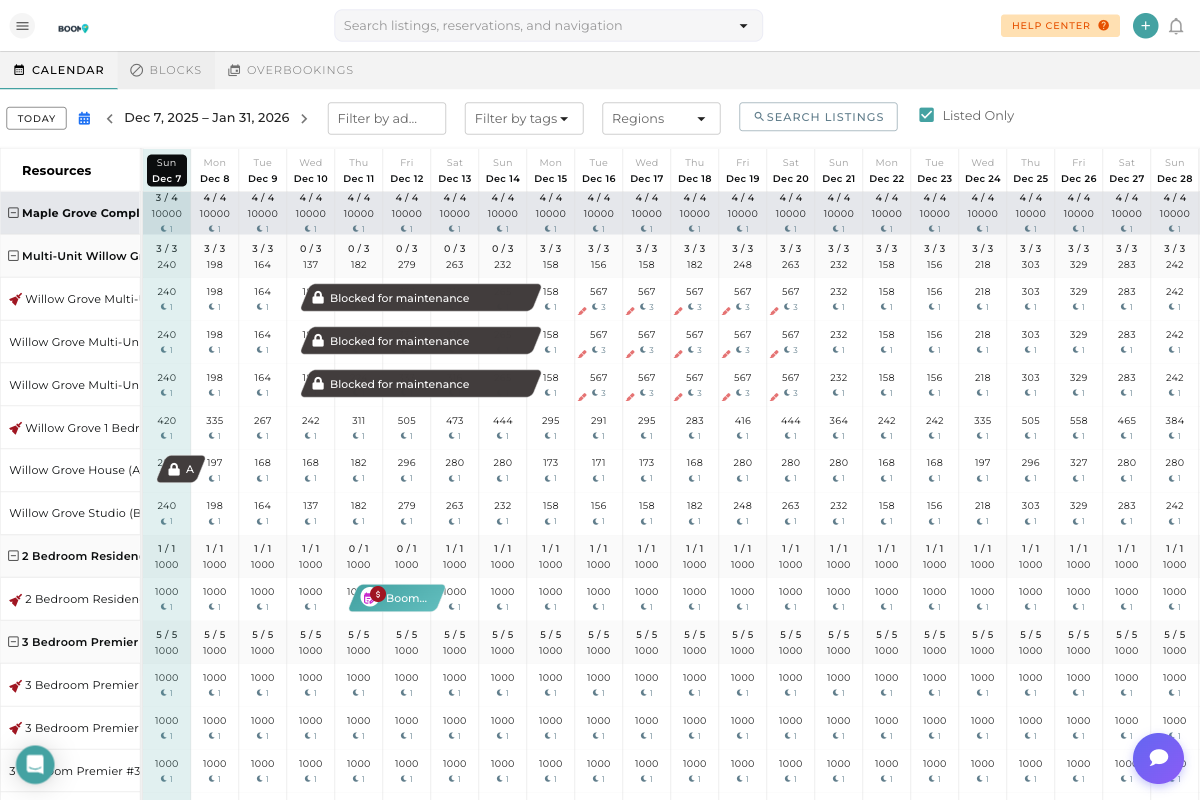
The quickest way to return to the current date:
- Click the TODAY button in the top-left of the toolbar
- The calendar will instantly scroll to show today's date
- Today's column will be highlighted for easy identification
Keyboard shortcut: Press T anywhere on the calendar page to jump to today.
Use the navigation arrows to move through time:
- Left Arrow (<) - Move backward in time
- Right Arrow (>) - Move forward in time
- Each click moves the view by approximately one screen width of dates
The current date range is displayed between the arrows (e.g., "Dec 7, 2025 - Jan 31, 2026").
For jumping to a specific date:
- Click on the date range display (e.g., "Dec 7, 2025 - Jan 31, 2026")
- A calendar picker will appear
- Click on any date to jump directly to that day
- Use the month/year navigation in the picker to move to distant dates
Next to the TODAY button, you'll see a small calendar icon:
- Click the calendar icon to open a mini calendar
- Select any date to navigate directly to it
- This is useful when you know the exact date you need to view
For smooth, continuous navigation:
- Mouse wheel: Use horizontal scroll (shift + scroll on most mice)
- Trackpad: Swipe left or right with two fingers
- Scroll bar: Drag the horizontal scroll bar at the bottom
This method is ideal for fine-tuned positioning when viewing reservations that span date boundaries.
Keyboard Shortcuts
Speed up your workflow with these keyboard shortcuts:
| Key | Action |
|---|---|
T |
Jump to today's date |
Left Arrow |
Move to previous dates (when calendar is focused) |
Right Arrow |
Move to next dates (when calendar is focused) |
Escape |
Close any open date picker or popup |
Pro Tips
What's Next?
Now that you can navigate the calendar efficiently, learn to:
- Block and unblock dates for maintenance or owner stays
- Use Calendar Filters to focus on specific properties
- Drag and drop reservations to move them between dates
Was this guide helpful?
Thanks for your feedback!