Overview
Blocking dates is essential for managing property availability. Whether it's for scheduled maintenance, owner stays, or simply holding dates for potential direct bookings, Boom PMS makes it easy to block and unblock dates across all your connected channels.
When you block dates in Boom PMS, the blocked status automatically syncs to all connected channels (Airbnb, Booking.com, VRBO, etc.), preventing double bookings and keeping your availability accurate everywhere.
How to Block Dates
The quickest way to block dates:
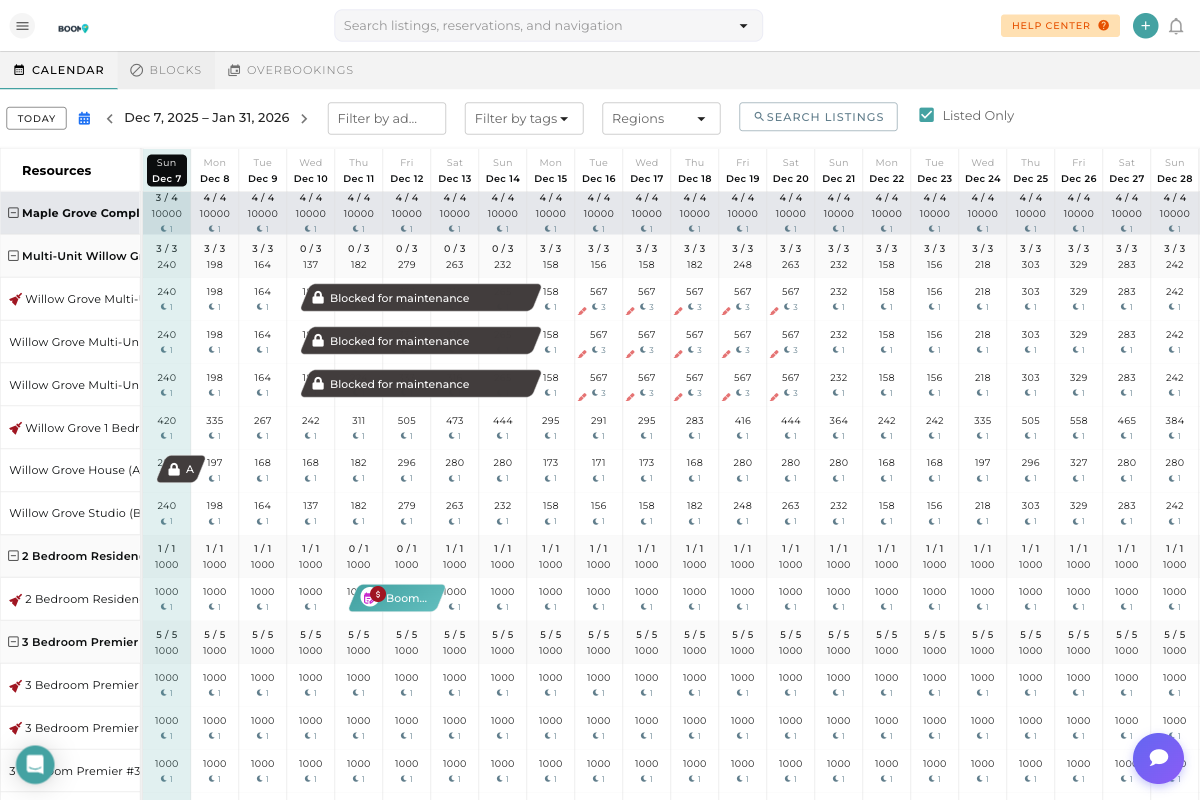
- Navigate to the Calendar tab
- Find the property you want to block
- Click on the start date and drag to the end date
- In the popup that appears, select "Block Dates"
- Choose a block type (maintenance, owner stay, etc.)
- Add an optional note explaining the reason
- Click Save
For a more structured approach:
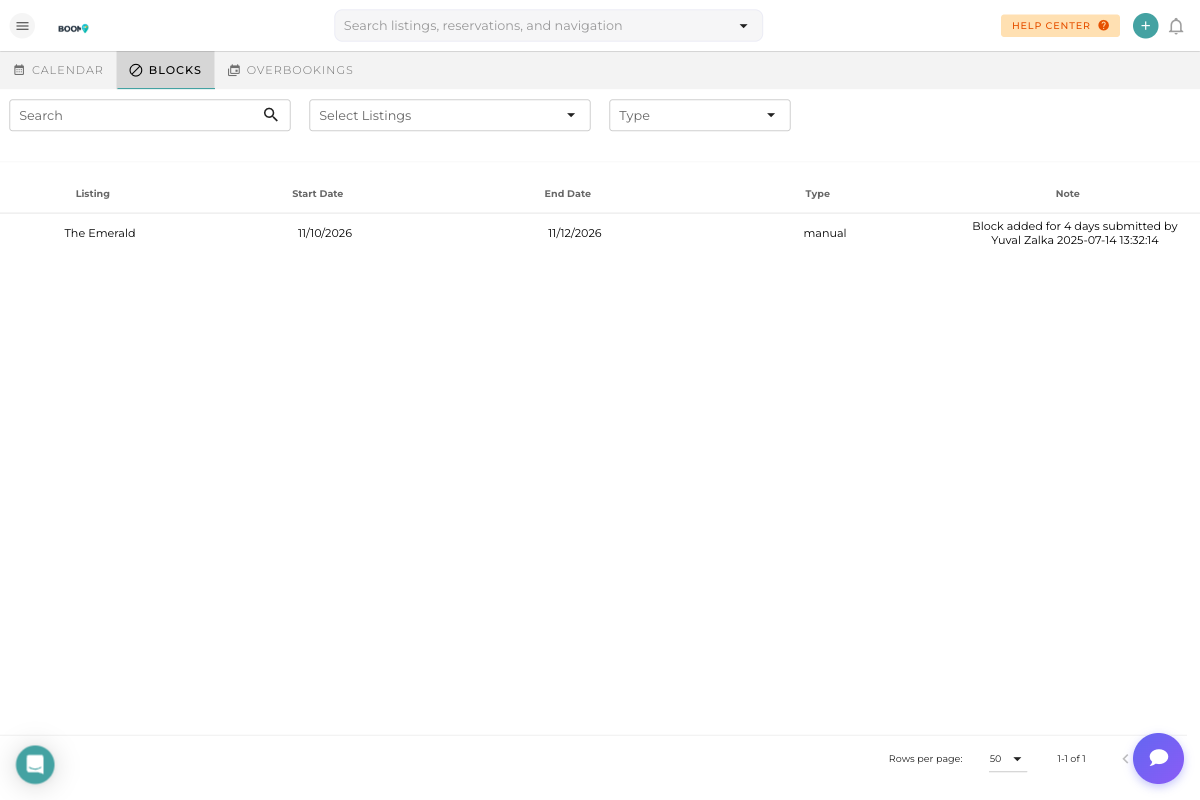
- Click the BLOCKS tab at the top of the calendar
- Click the + Add Block button
- Select the property from the dropdown
- Choose start and end dates
- Select the block type
- Add notes if needed
- Click Save
Block Types
Boom PMS supports different types of blocks to help you categorize and track why dates are unavailable:
| Type | Use Case |
|---|---|
| Manual | General-purpose block for any reason |
| Maintenance | Property repairs, cleaning, or renovations |
| Owner Stay | When property owners are using the property |
| Hold | Temporarily holding dates for potential direct bookings |
| Seasonal Closure | Properties closed for a season |
Managing Existing Blocks
The BLOCKS tab shows all your blocked dates in a table format:
- Listing - The property with blocked dates
- Start Date - When the block begins
- End Date - When the block ends
- Type - The category of block (manual, maintenance, etc.)
- Note - Any notes added when creating the block
Use the filters at the top to search by property or block type.
To modify an existing block:
- Find the block in the Blocks tab or click on it directly in the calendar
- Click on the block to open the details panel
- Make your changes (dates, type, notes)
- Click Save to update or Delete to remove
To make blocked dates available again:
- Click on the gray "Blocked" bar on the calendar
- Click Delete Block or Remove
- Confirm the deletion
The dates will immediately become available and sync to all connected channels.
Pro Tips
What's Next?
Now that you know how to manage blocked dates:
- Learn to Drag and Drop Reservations to reschedule bookings
- Use Calendar Filters to find specific properties quickly
- Understand the Pricing View to manage rates
Was this guide helpful?
Thanks for your feedback!