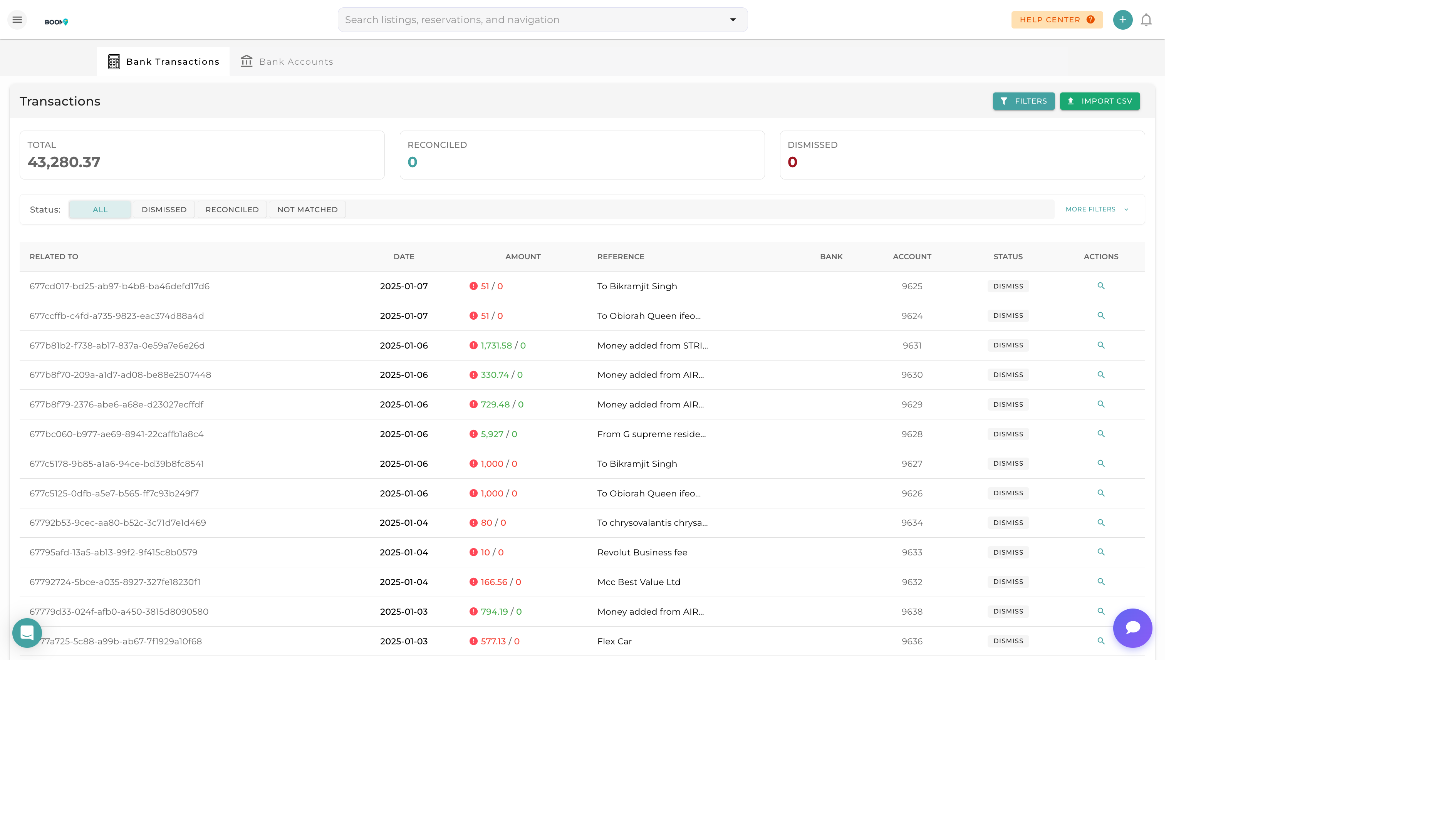
Overview
Bank Feeds connects your bank accounts to Boom PMS via Plaid, automatically importing transactions for easy reconciliation. This eliminates manual data entry and ensures your books match your bank statements.
Connecting a Bank Account
Navigate to Bank Feeds
Go to Accounting > Bank Feeds from the main menu.
Click Add Account
Click "Connect Bank Account" to start the Plaid connection.
Select Your Bank
Search for your bank from the list of supported institutions.
Authenticate
Log in with your bank credentials. You may need to complete 2FA verification.
Select Accounts
Choose which accounts to connect (checking, savings, credit cards).
Map to Ledger Account
Link each bank account to a corresponding ledger account in your chart of accounts.
Importing Transactions
Once connected, transactions are imported automatically:
- Daily Sync - New transactions pulled each day
- Manual Refresh - Click refresh to get latest transactions
- Historical Import - Initial connection imports up to 90 days of history
Transaction Matching
Match imported transactions to existing records:
Automatic Matching
Boom PMS automatically suggests matches based on:
- Amount and date
- Payee name patterns
- Previous matching rules
Manual Matching
For unmatched transactions:
- Search for the corresponding record
- Create a new expense or income entry
- Split between multiple accounts
- Mark as transfer between accounts
Matching Rules
Create rules to auto-categorize recurring transactions (e.g., always categorize "CLEANING CO" as cleaning expense).
Reconciliation
Monthly reconciliation process:
- Compare ending balance to bank statement
- Identify and resolve discrepancies
- Mark the period as reconciled
- Lock reconciled transactions from editing