Overview
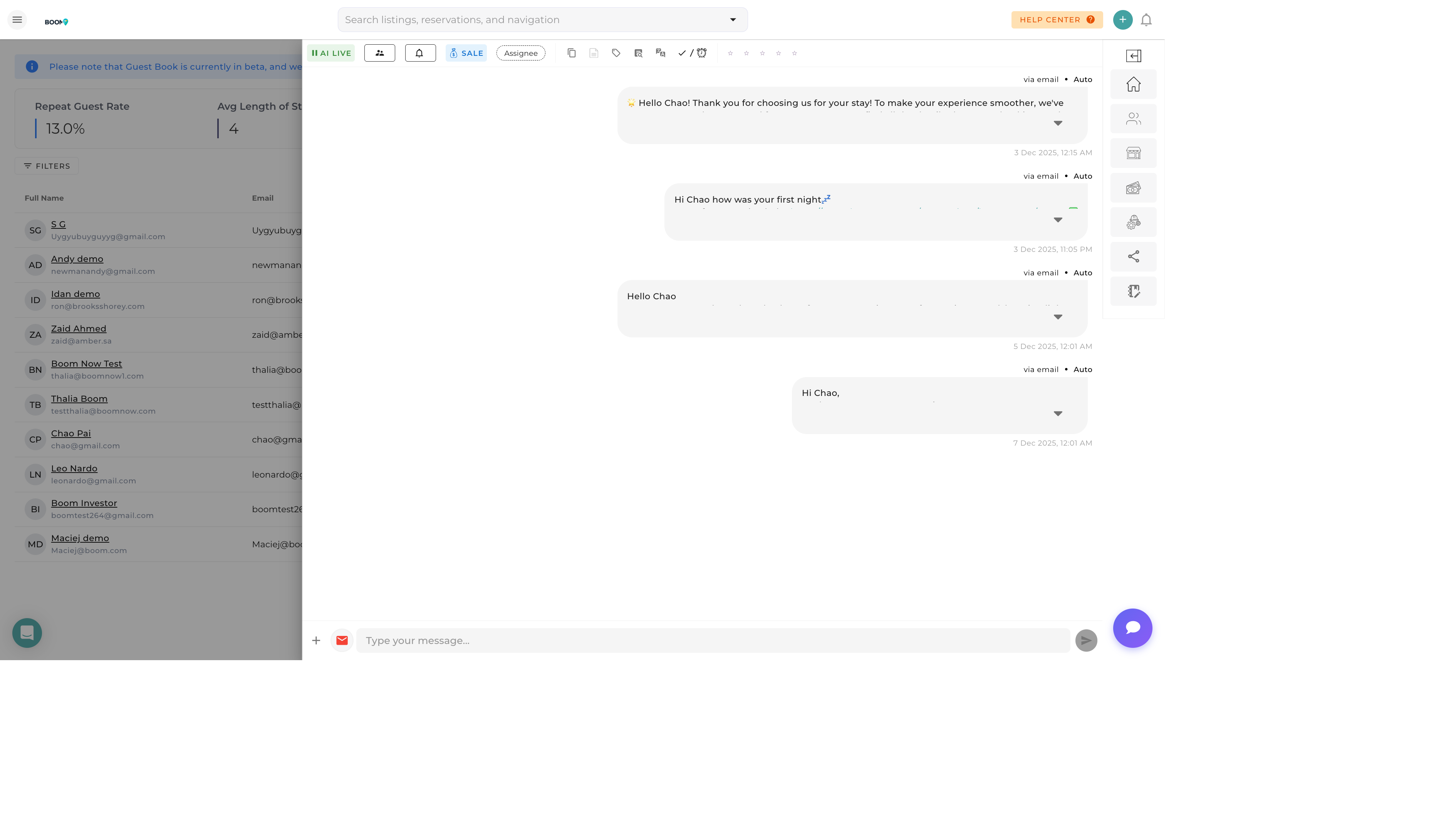
Communicate with guests through multiple channels directly from Boom PMS. Whether you need to send a quick SMS, compose an email, or reach out via WhatsApp, all communication is tracked and accessible from the guest profile.
Communication Channels
| Channel | Best For | Requirements |
|---|---|---|
| Detailed information, documents, formal communication | Guest email address | |
| SMS | Quick updates, check-in codes, urgent messages | Guest phone number, Twilio configured |
| International guests, rich media messages | Guest phone with WhatsApp, Twilio configured | |
| OTA Channel | Airbnb/Booking.com guests (required for some) | Channel connection active |
Sending a Message
-
Open Guest Profile
Navigate to the guest from Guest Book or a reservation
-
Click Message Button
Find the "Message" or "Send Message" button in the header
-
Select Channel
Choose Email, SMS, WhatsApp, or OTA channel
-
Compose Message
Type your message or select a template
-
Review and Send
Preview the message and click Send
Using Message Templates
Save time with pre-made templates for common communications:
-
Open Compose Window
Start a new message to the guest
-
Click Templates
Open the template selector
-
Choose Template
Select from available templates
-
Personalize
Edit template variables (guest name, dates, etc.)
-
Send
Review and send the personalized message
Common Templates
- Booking Confirmation - Confirm reservation details
- Pre-Arrival - Check-in instructions and welcome
- Check-In Code - Access codes and directions
- Post-Stay - Thank you and review request
- Payment Reminder - Outstanding balance notification
Viewing Message History
All guest communications are logged and accessible:
From Guest Profile
- Open Guest Profile
- Click Messages Tab
- View All Conversations
Message Details
| Information | Description |
|---|---|
| Timestamp | When the message was sent/received |
| Channel | Email, SMS, WhatsApp, or OTA |
| Direction | Incoming or outgoing |
| Status | Sent, delivered, read, or failed |
| Related Reservation | Link to associated booking if any |
Channel-Specific Notes
Email Communication
- Rich text formatting supported
- Attach documents and images
- Use HTML templates for branded emails
- Track open and click rates
SMS Communication
- 160 character limit per segment
- Longer messages split into multiple segments
- Delivery receipts available
- Two-way conversation supported
WhatsApp Communication
- Send images and documents
- Template messages required for first contact
- 24-hour messaging window after guest reply
- International messages at low cost
OTA Channel Communication
- Messages routed through Airbnb/Booking.com
- Some OTAs require communication through their platform
- Messages synced to guest profile automatically
- Subject to OTA messaging policies
Was this guide helpful?
Thanks for your feedback!