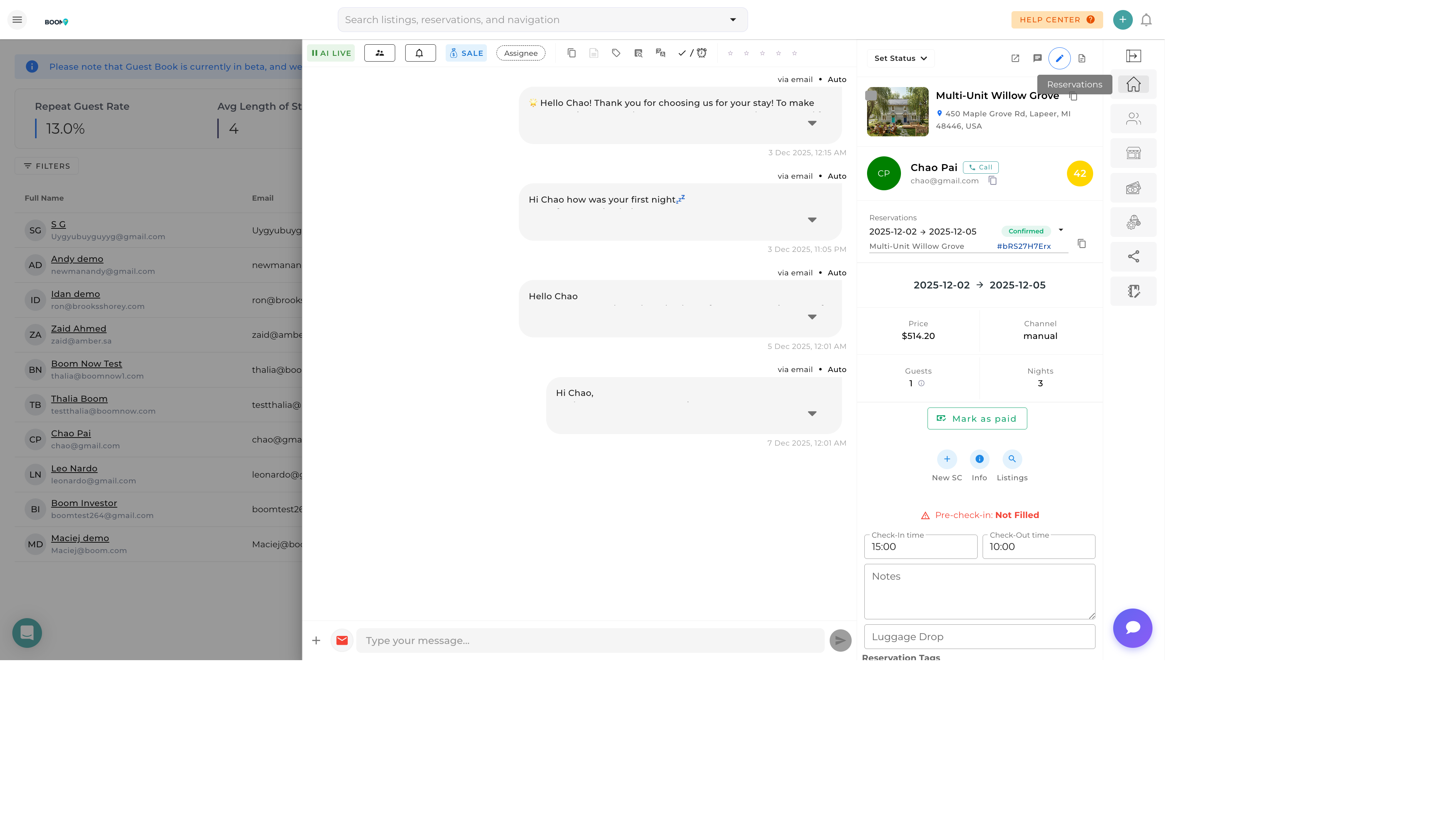
Guest Profile in Boom PMS
Overview
Each guest in your system has a comprehensive profile containing all their information, booking history, communications, and preferences. The profile is the single source of truth for everything related to a guest.
Profile Layout
Header Section
- Name & Photo - Guest name with profile photo if available
- Tags - VIP, Repeat, or custom tags
- Quick Stats - Total stays, total spent, average rating
- Quick Actions - Message, Create Reservation buttons
Contact Information
| Field | Description |
|---|---|
| Primary email address (click to compose) | |
| Phone | Phone number with country code |
| Address | Home or billing address |
| Country | Guest's country of residence |
| Language | Preferred communication language |
Profile Tabs
Overview Tab
Summary view with recent activity, upcoming reservations, and key metrics.
Reservations Tab
Complete booking history with:
- All past, current, and future reservations
- Status, dates, property, and total for each
- Click any reservation to view details
Messages Tab
Full communication history:
- All messages sent and received
- Across all channels (email, SMS, OTA)
- Threaded by reservation
Documents Tab
Stored files and documents:
- ID verification photos
- Signed rental agreements
- Other uploaded documents
Notes Tab
Internal team notes about the guest:
- Staff observations and comments
- Preferences noted by team
- Issues or special circumstances
Editing a Guest Profile
-
Open the Profile
Click on a guest from the Guest Book
-
Click Edit
Find the edit button in the header or use E
-
Update Information
Modify contact details, address, preferences
-
Save Changes
Click Save to update the profile
Channel Sync
Some guest information comes from OTA channels and may update when new reservations arrive. Your manual edits are preserved but may be supplemented with channel data.
Managing Guest Tags
Tags help categorize and identify guests quickly:
Common Tags
| Tag | Purpose |
|---|---|
| VIP | High-value guests deserving special attention |
| Repeat | Automatically applied after multiple stays |
| Corporate | Business travelers with company accounts |
| Problem | Guests with past issues (use carefully) |
| Referral | Guests who referred others |
To add or remove tags:
- Open Profile
- Click Tags Section
- Add or Remove Tags
- Changes Save Automatically
Was this guide helpful?
Thanks for your feedback!